
Navigating Hplix
Find your way around Hplix: the sidebar, its menu groups, the Pulse assistant, notifications and your account menu.
Every page in Hplix has the same layout. The sidebar on the left takes you to each module, and the page you open fills the rest of the screen. When you sign in, Hplix opens on Ask Pulse.
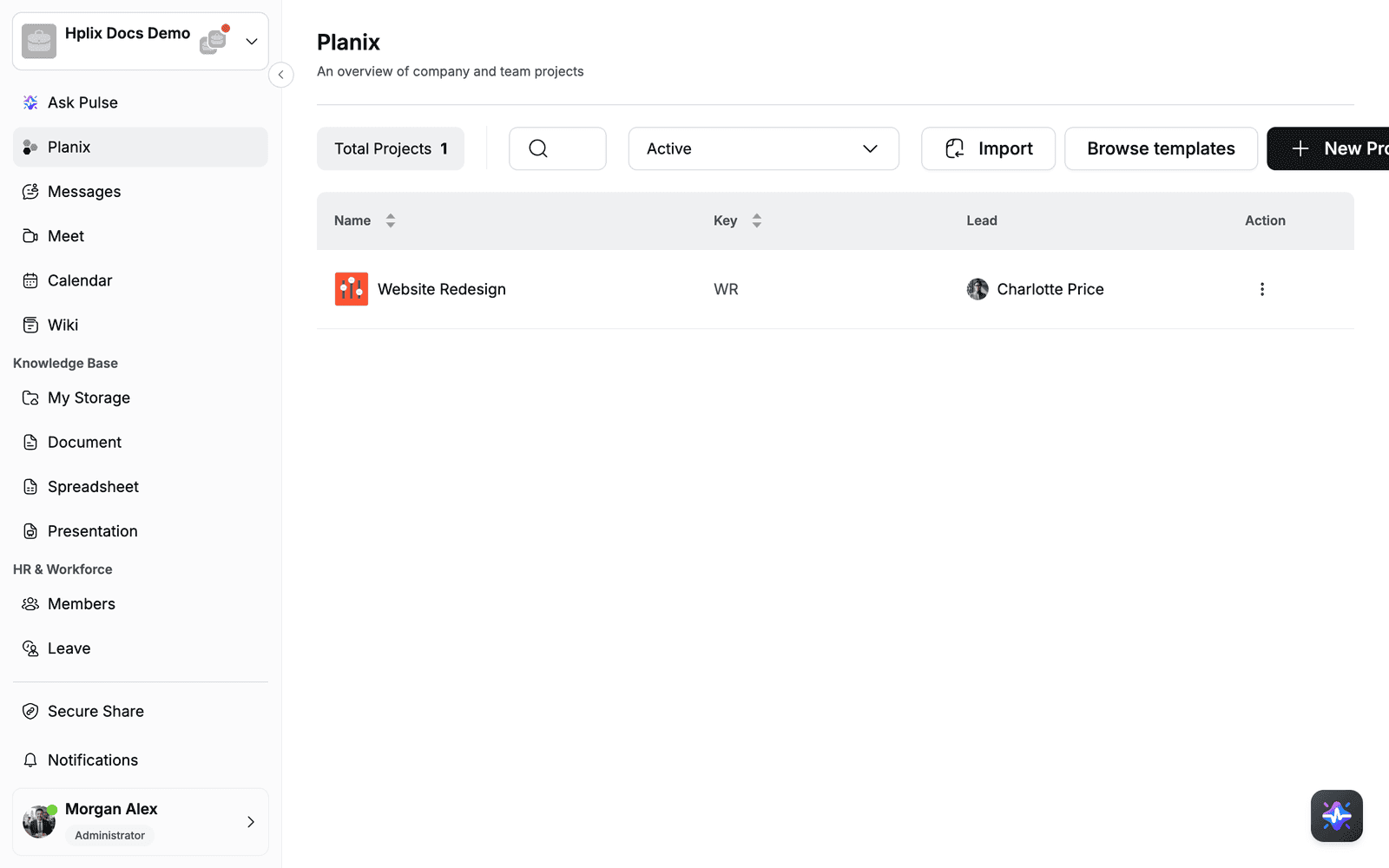
The screen has four parts:
- Workspace switcher at the top of the sidebar. It shows the name of the workspace you are in.
- Sidebar with the menu items, grouped by area. Scroll the list to see all groups.
- Content area with the page you opened.
- Pulse button in the bottom-right corner, which opens the AI assistant on top of the current page.
Open a module
Click a menu item in the sidebar. The item you are on is highlighted. The items are grouped as follows:
| Group | Menu items |
|---|---|
| Top of the sidebar | Ask Pulse, Planix, Messages, Meet, Calendar, Wiki |
| Knowledge Base | My Storage, Document, Spreadsheet, Presentation |
| HR & Workforce | Members, Leave, Overtime, Timesheets, Approvals, Recruitment |
| Projects & Operations | Clients, Projects, Recurring Tasks, Invoices, Company Assets, OKR |
| Access & Accounts | Roles & Departments, Accounts Management, Access Control, Connected Accounts, Identity Providers, Custom Apps, Password Vault, Software |
| System & Settings | Risk Management, Workspace Settings, Mail Settings, AI Service, Plan Management |
| Bottom of the sidebar | Secure Share, Notifications |
Secure Share and Notifications stay at the bottom of the sidebar, above your name, so you can reach them without scrolling. They open on top of the current page instead of replacing it.
Collapse the sidebar
- Click the arrow button on the right edge of the sidebar, next to the workspace switcher.
- The sidebar shrinks to a narrow column of icons, and the content area gets wider.
To open the full sidebar again, click the arrow button once more.
Ask Pulse from any page
- Click the Pulse button in the bottom-right corner.
- The Pulse panel opens on the right. It shows suggestions such as Summarize my work today, and a Context label with the page you are on.
- Type your question in Ask Pulse and send it, or click a suggestion.
To close the panel, click × in its top-right corner. The Pulse button does not appear on the Ask Pulse page itself, because that page is the full-size assistant. See Ask Pulse for what Pulse can do.
Check your notifications
- Click Notifications at the bottom of the sidebar.
- The Notifications panel opens. Notifications are split into the Platform and Projects tabs.
- To hide notifications you have already read, turn on Only show unread.
- To clear everything at once, click ⋮ and select Mark all as read.
Click anywhere outside the panel to close it.
Switch workspaces and open your account
- To move to another workspace, click the workspace name at the top of the sidebar. The list also has Workspace Invitations, Create Workspace and Sign in to another workspace. See Workspaces.
- To open your account menu, click your name at the bottom of the sidebar. From there you can set a status, go to My Workspaces or Account Settings, change your online status, and Log out. See Sign in & account.