
OKR
Set objectives and key results for each cycle, track progress with check-ins, align goals and create review reports.
OKR helps your team agree on a few objectives for each cycle and measure them with key results. Everyone keeps their own OKRs, follows colleagues and checks in on progress during the cycle.
Before you begin
An administrator activates OKR once for the whole workspace. After that, every member can add objectives on their own OKR page. You cannot add objectives on another person's page.
Find your way around
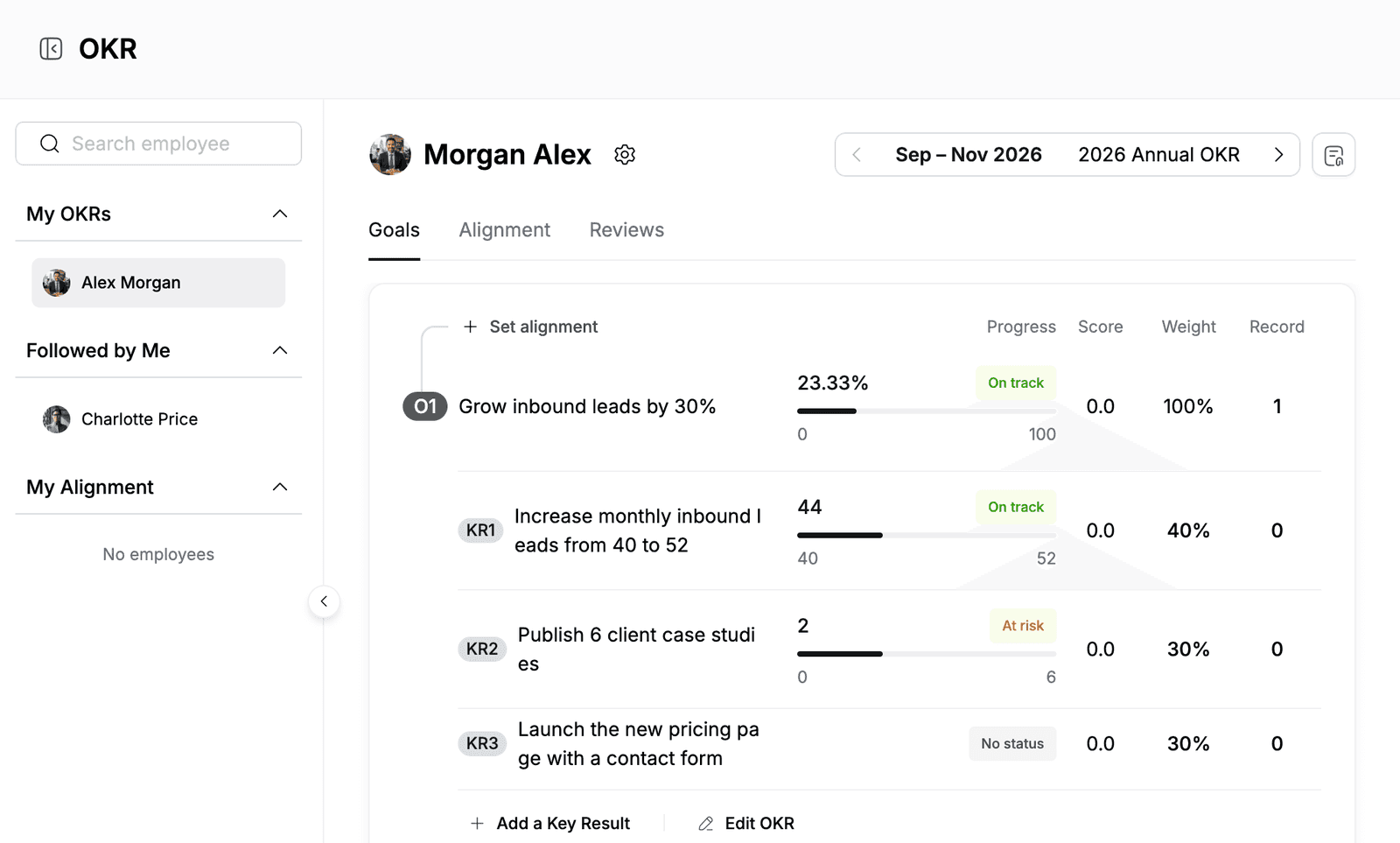
- The left panel lists My OKRs, the people you follow under Followed by Me, and My Alignment. Use Search employee to open anyone's OKRs.
- The cycle switcher at the top right moves between cycles, for example Sep – Nov 2026 and 2026 Annual OKR.
- Each OKR page has three tabs: Goals, Alignment and Reviews.
- Each row shows the Progress and status, Score, Weight and Record (the number of check-ins).
Activate OKR
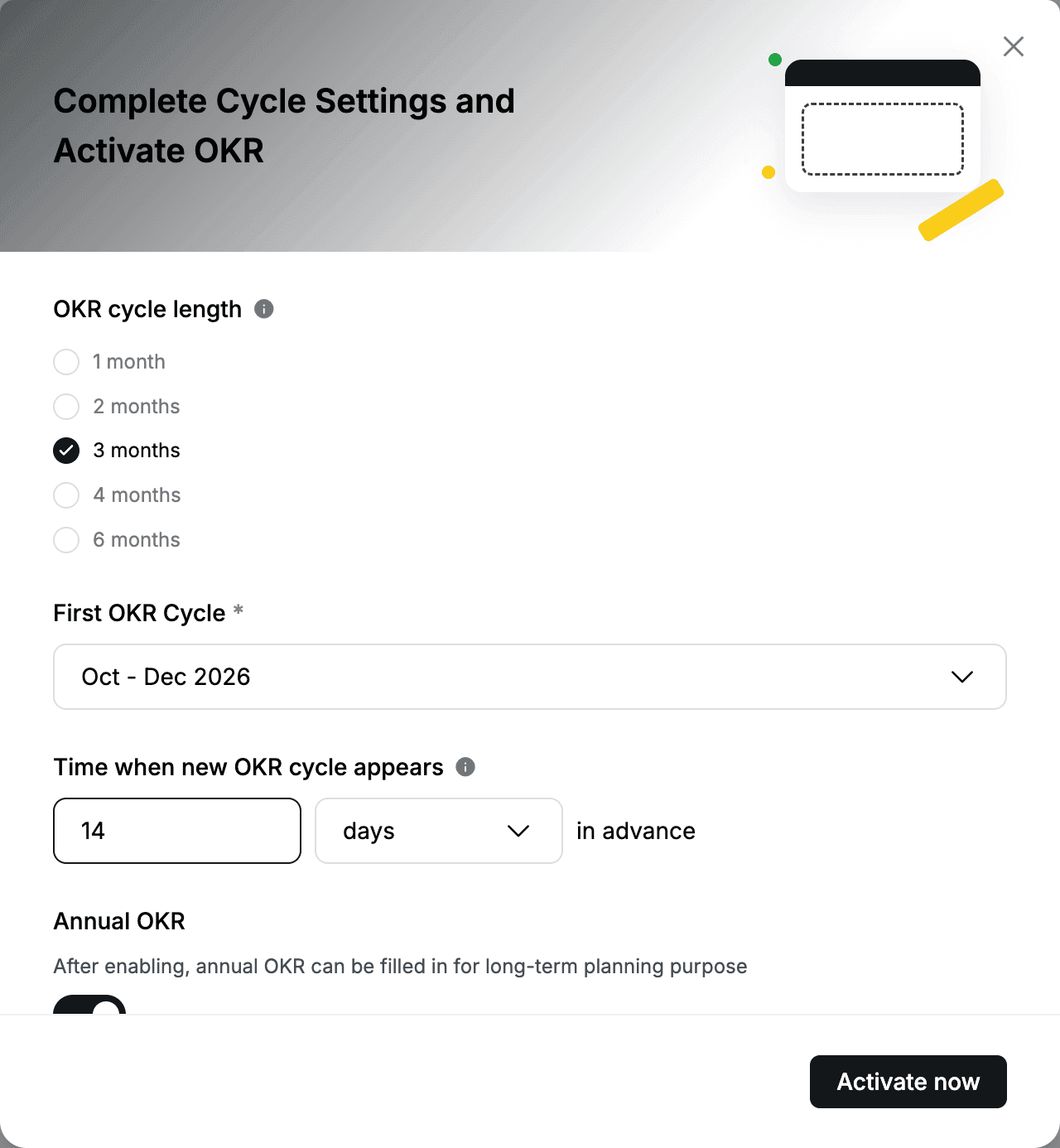
The first time anyone opens OKR, an administrator sees Complete Cycle Settings and Activate OKR.
- Go to OKR.
- Under OKR cycle length, choose 1 month, 2 months, 3 months, 4 months or 6 months.
- In First OKR Cycle, select the cycle to start with, for example Oct - Dec 2026.
- Under Time when new OKR cycle appears, enter how many days in advance the next cycle opens, for example
14. - Leave Annual OKR on if you also want a yearly cycle for long-term goals.
- Click Activate now.
To change these settings later, click the gear icon next to your name. On Cycle Settings, click Edit under Cycle Settings or Annual OKR Settings, or turn Annual OKR off. Under More settings, Hide invalid cycles hides cycles that are marked as invalid and have no content.
Create an objective
- Go to OKR and select the cycle at the top right.
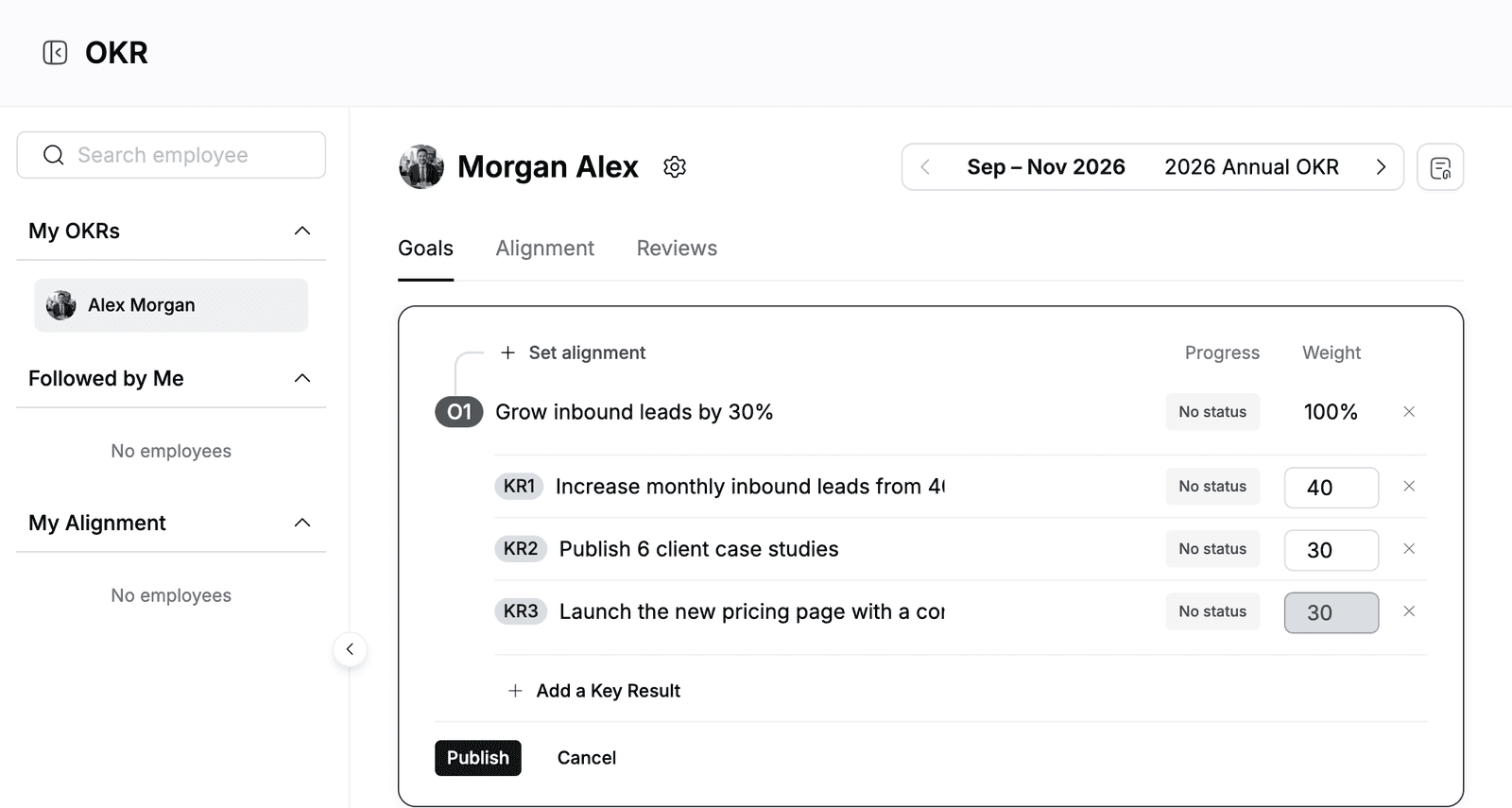
- Click Add an Objective.
- Enter the objective, for example
Grow inbound leads by 30%. - Enter the first key result, for example
Increase monthly inbound leads from 40 to 52. - Click Add a Key Result for each extra key result.
- Optional: change the Weight of each key result. The last weight is calculated so the total is 100%.
- Click Publish.
Your draft is saved while you type. Click Cancel to stop editing. After you publish, use Edit OKR to change the text, and Notes to add context for readers.
Set targets for a key result
By default, a key result is measured in percent from 0 to 100. To measure something else, such as a number of leads:
- Click the status of the key result, for example No status.
- Click Advanced settings.
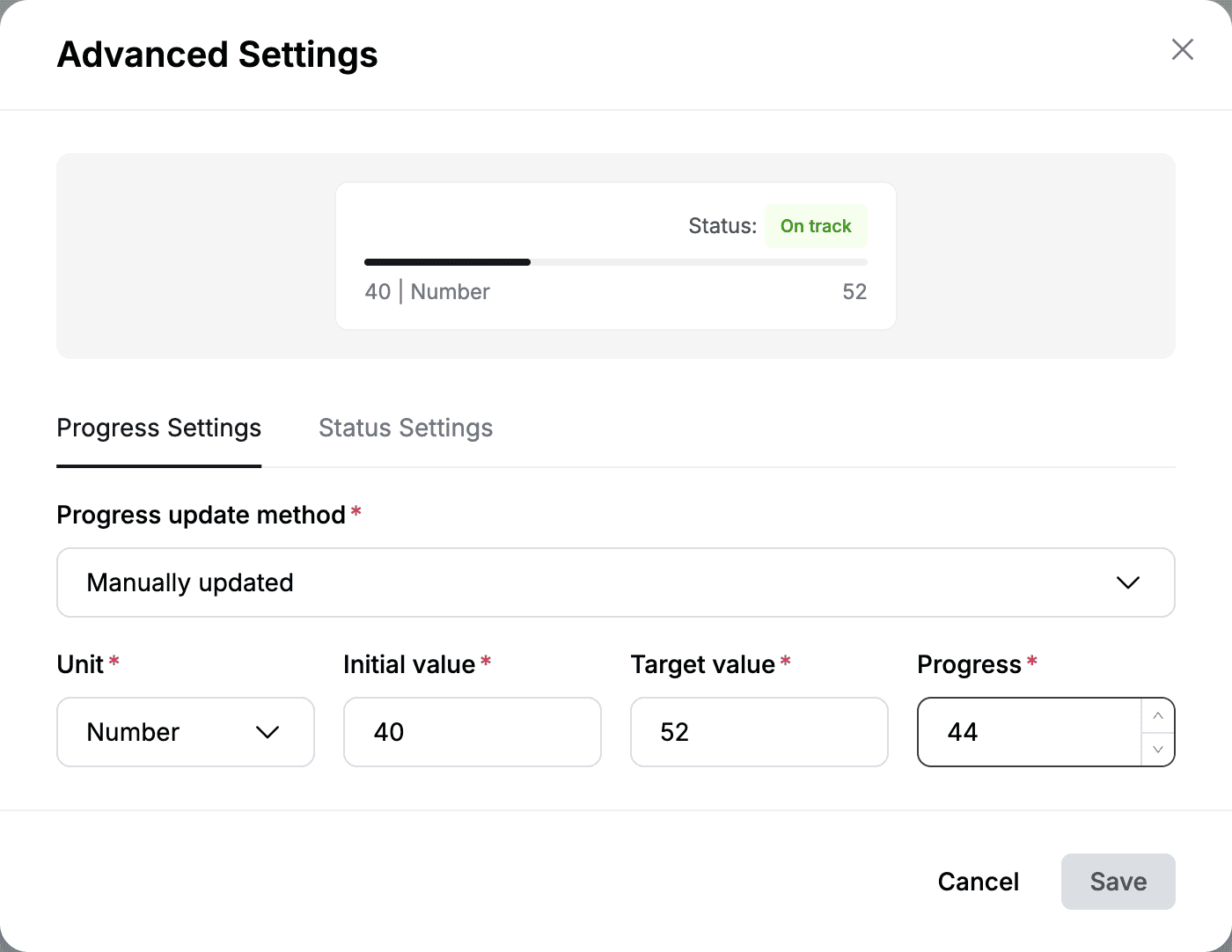
- On Progress Settings, choose the Unit: %, Number or Currency.
- Enter the Initial value, the Target value and the current Progress, for example
40,52and44. - Optional: on Status Settings, choose On track, At risk or Off track.
- Click Save.
The objective's progress is calculated from the progress and weight of each key result.
Check in on progress
Update progress and status regularly so everyone can see how the cycle is going.
- Click the status next to an objective or key result.
- Choose a Status: No status, On track, At risk or Off track.
- For a key result, enter the new Progress.
- Click Submit.
Each check-in adds one to the Record count. Click the record count to open OKR Details:
- Progress shows a chart of the progress over the cycle and a table of each update with its time.
- Comment history lists every check-in. You can also add a comment here.
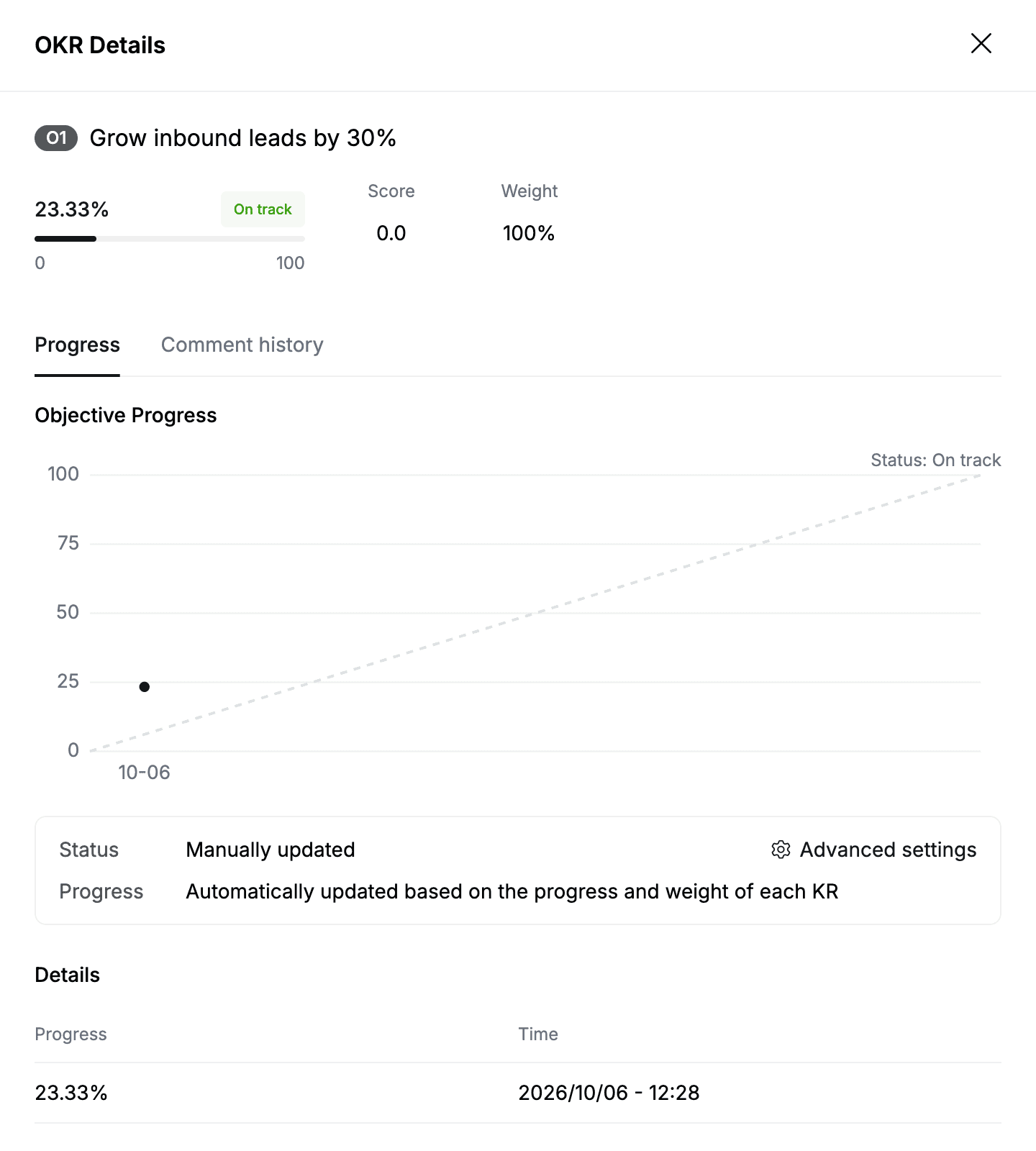
To comment on someone's OKRs as a whole, use Comments at the bottom of their OKR page.
Align objectives
Alignment links your objective to an objective it supports, for example a company goal.
- To align an objective, click Set alignment above it and search for the person whose objective yours supports. Only people who have objectives in the cycle appear.
- The Alignment tab shows the objectives on a map, with progress, status and the number of records.
- My Alignment in the left panel lists the people whose objectives are aligned with yours.
Follow colleagues
- Search for a person in Search employee and open their OKRs.
- Click the star next to their name.
The person appears under Followed by Me.
Create a review report
At the end of a cycle, or halfway through, create a report of your OKRs.
- Open the Reviews tab.
- Click Create report.
- Enter a Title, for example
Q4 2026 mid-cycle review, and click Save.
The report shows the progress and score at the time you created it. Click Open report to read it. Reports are saved in the OKR Reviews space in Wiki. The space is public, so everyone in the workspace can read them.
Need help writing OKRs?
Click the icon to the right of the cycle switcher to open Proposals. Writing Guide explains how to write strong objectives and key results, and Examples shows sample OKRs for teams such as Product, Engineering, Marketing and Sales.