
Overtime
Request overtime on a project, approve or reject requests, set overtime rules and limits, and report on overtime hours.
Overtime lets employees request extra working hours on a project and send them to approvers. Admins set the overtime rules and limits and review how much overtime the company works.
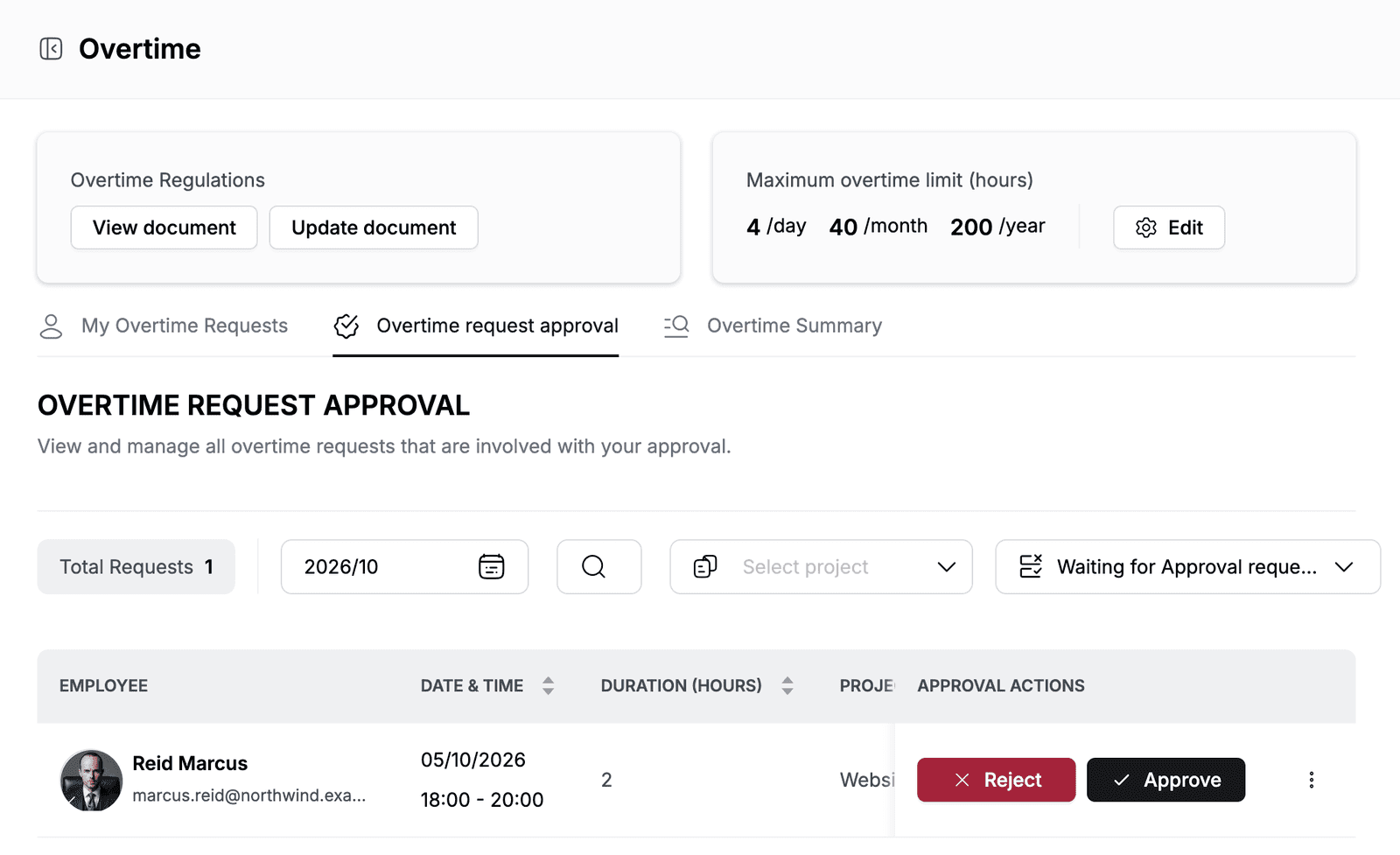
Find your way around
At the top of the page:
- Overtime Regulations — click View document to read your company's overtime rules, or Update document to change them.
- Maximum overtime limit (hours) — the most overtime one person can work per day, month and year. Click Edit to change it.
Below, the tabs:
| Tab | What it shows |
|---|---|
| My Overtime Requests | Your own requests, with their status, and your Remaining Overtime hours |
| Overtime request approval | Requests where you are an approver. The tab appears once a request is sent to you. |
| Overtime Summary | Approved overtime for everyone in the company, with the total hours |
Request overtime
- Go to Overtime.
- On the My Overtime Requests tab, click New overtime request.
- Pick the Date.
- Under Time, pick the start and end time. Duration shows the number of hours.
- Select the Project.
- Enter a Reason, for example
Production release: deploy the WR Sprint 1 build and monitor it after hours. - Under Approvers, select one or more people.
- Click Submit.
The request waits for approval. To find it later, pick the month and, optionally, a status at the top of the list.
Add overtime for an employee
If someone cannot submit a request themselves, add it for them.
- Go to Overtime > Overtime Summary.
- Click Add Overtime Record.
- Select the Employee.
- Fill in Date, Time, Project, Reason and Approvers as for your own request.
- Click Submit.
The record goes to the approvers like any other request.
Approve or reject overtime
- Go to Overtime > Overtime request approval.
- The list shows Waiting for Approval requests for the selected month. Use the search and the project filter to narrow it down.
- On the request's row, click Approve or Reject.
- Click Confirm.
Approved overtime is added to the Overtime Summary. To see requests you already decided, choose Approved requests or Rejected requests in the status filter.
To change or remove a request, click ⋮ at the end of its row and select Edit request or Delete request.
Set the overtime regulations
Write down your company's overtime rules so everyone can read them before they request overtime.
- Go to Overtime and click Update document.
- Enter the rules, for example who must agree to overtime and how it is paid. Use the toolbar to format the text.
- Click Save.
Employees open the rules with View document.
Set overtime limits
- Go to Overtime. Under Maximum overtime limit (hours), click Edit.
- Enter Maximum Overtime Hours Per Day, Maximum Overtime Hours Per Month and Maximum Overtime Hours Per Year, for example
4,40and200. - Click Save.
The limits apply to all employees in the company. Each person's Remaining Overtime on the My Overtime Requests tab is based on them.
View the overtime summary
Go to Overtime > Overtime Summary. The list shows approved overtime for the selected month: employee, date and time, duration, project, reason and approvers. Total Overtime Hours adds them up. Select a project to see only its overtime.
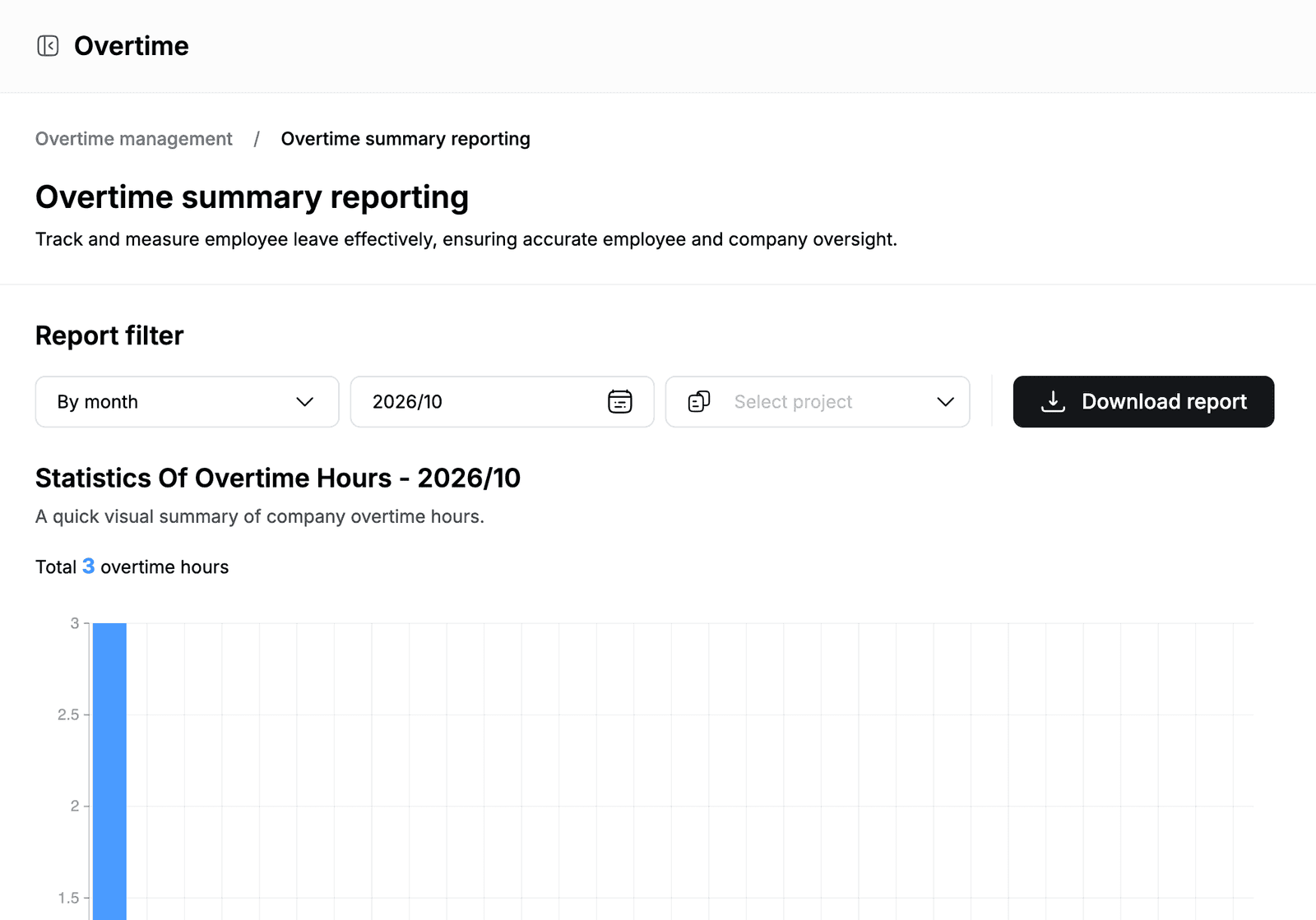
For a report, click View Report. The Overtime summary reporting page shows:
- A chart of overtime hours for the period.
- Employee overtime details: each employee's department, number of overtime records and total hours.
Choose By month or By year, pick the period and, optionally, a project.
Export overtime
- Go to Overtime > Overtime Summary and click View Report.
- Set the period and project.
- Click Download report.
You get an Excel file (.xlsx) with the overtime for that period.