
Timesheets
Log the hours you spend on each project, link them to Planix tasks, and review and report on everyone's work logs.
Timesheets is where you log the hours you work on each project. Administrators use it to review, correct and report on the work logs of everyone in the workspace.
Before you begin
Timesheets has two tabs: My Work Logs and Work Log Management. Which tabs you see depends on your role. Administrators see both. My Work Logs shows a row for each of your projects. To add someone to a project, see Clients.
Log your hours
- Go to Timesheets > My Work Logs.
- In the row of the project, click the cell for the day. You can log time for today and earlier days only.
- In Planix Tasks, select the tasks you worked on, for example
WR-6. You can select more than one. - Check the Date.
- Enter the Hours, for example
4or3.5. - Click Add.
The hours appear in the day's cell and in Total hours. Description is filled in for you with the key and title of each task you selected, for example - (WR-6) Build responsive homepage.
In the Day view, click Log Hours in the row of the project instead.
View your logged hours
On My Work Logs:
- Switch between Day, Week and Month at the top right. The heading shows the period and your total hours for it.
- Use the arrows next to the period to move back and forward, or click the period, for example 2026 - Week 41, to pick another week or month.
- Each row is a project. Total hours shows the hours for that project in the period.
Edit or delete a work log
- On My Work Logs, click the hours in a day's cell.
- Select Edit Work Log or Delete Work Log.
- To edit, change the project, date, tasks or hours, then click Save.
- To delete, click Delete to confirm.
A deleted work log cannot be restored.
Review everyone's work logs
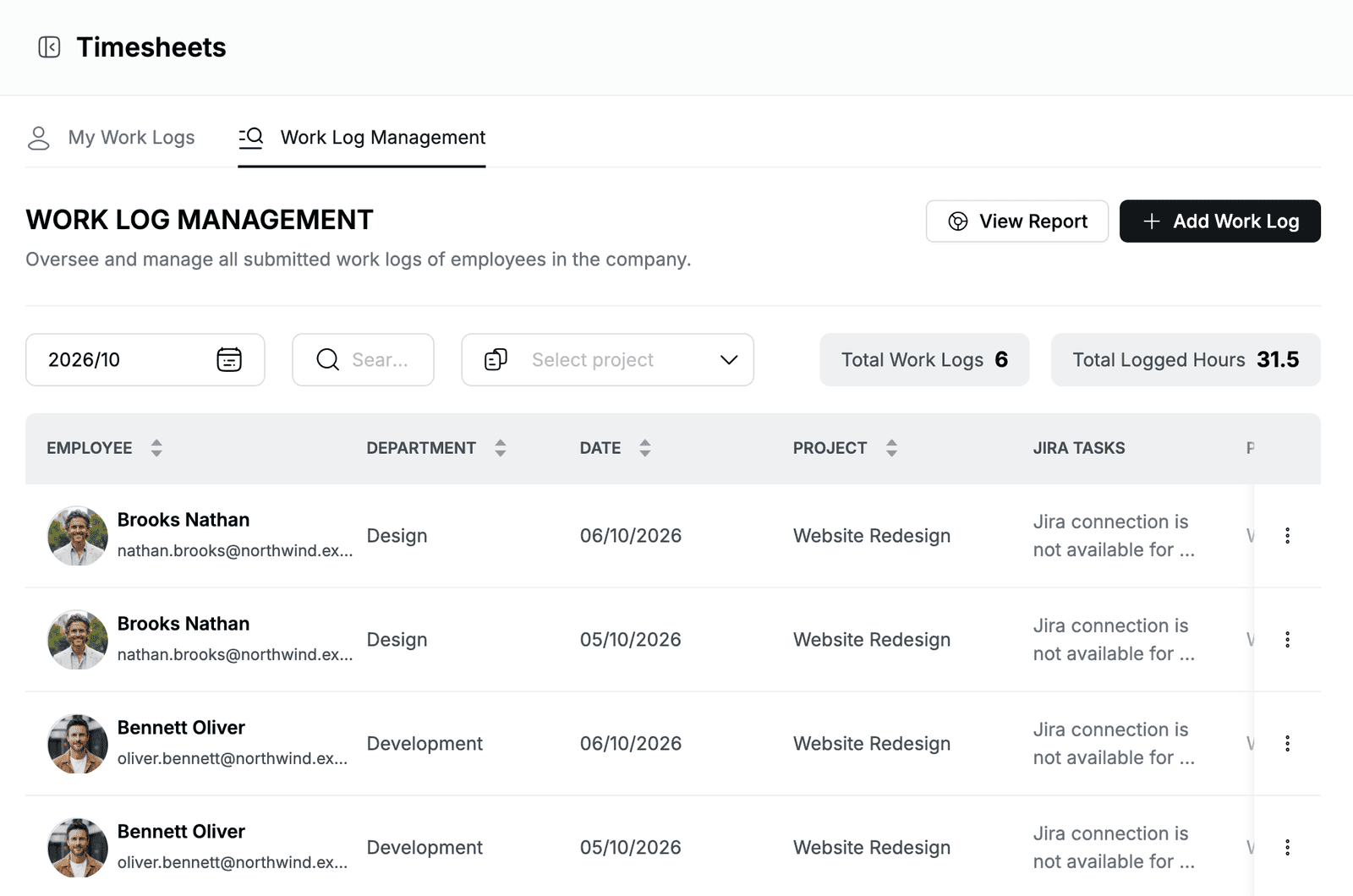
Go to Timesheets > Work Log Management. The list shows each work log with the employee, department, date, project, Planix tasks, hours and description. Total Work Logs and Total Logged Hours add up the logs in the list.
To narrow the list:
- Click the month, for example 2026/10, to choose another month.
- Click the search icon and search by name, email, department or project.
- Select a project in Select project.
To change a work log, click the ⋯ menu at the end of its row and select Edit or Delete. The edit form shows who added the log and when.
Add a work log for an employee
Use this when someone forgot to log their time or asks you to log it for them.
- Go to Timesheets > Work Log Management.
- Click Add Work Log.
- In Employee, search for and select the person, for example
Ethan. - Select the Project.
- Select the Planix Tasks, the Date and enter the Hours.
- Click Add.
The work log appears in the list.
View and download the work log report
- Go to Timesheets > Work Log Management.
- Click View Report.
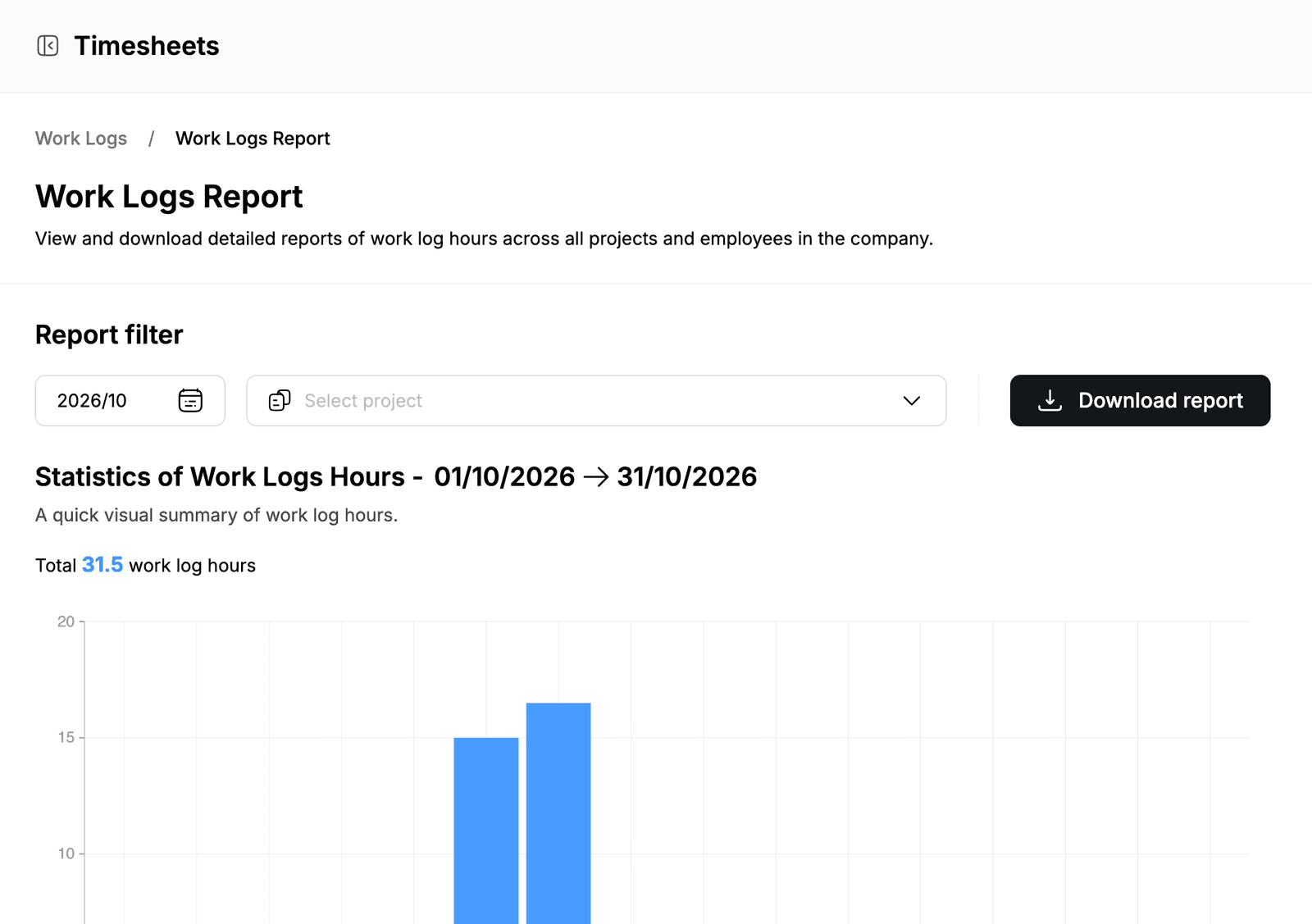
The Work Logs Report page shows a chart of the work log hours for the month, the total hours, and Employee Work Logs: the projects, number of work logs and total hours for each employee.
To download the report:
- Under Report filter, select the month and, if you want, a project.
- Click Download report.