
Invoices
Submit invoices for payment, review and pay company invoices, keep a list of vendors and download invoice reports.
Invoices is where members submit invoices and expense receipts for payment, and where finance staff review, pay and report on them. You can also keep a list of the vendors your company buys from.
Before you begin
Invoices has three tabs: My Invoices, Invoice Management and Vendor Management. Which tabs you see depends on your role. Administrators see all three. Amounts are always in the workspace currency, which an administrator sets in Workspace Settings.
Submit an invoice
-
Go to Invoices > My Invoices.
-
Click Submit Invoice.
-
Fill in the form:
Field Description Category Company Invoice for a company purchase, Personal Invoice for an expense you paid yourself. Invoice Name A short name. Include the vendor, for example Inkwell Print Co. - Brochure printing.Reference ID Optional. The number on the invoice, digits only, for example 20261002.Invoice Date The date on the invoice. Type Office supplies, Team building, Software/Tool, Travel expense, Devices or Other. Amount The total, in the workspace currency shown in the label. Note Optional. Any details for the reviewer. Attachments Optional. A copy of the invoice as a PDF, JPG or PNG file, up to 10 MB. -
Click Submit.
The invoice appears in My Invoices with the status Pending.
Find your invoices
My Invoices lists every invoice you created, with its Status, Invoice Date, Payment Date, Reference ID, Type and Total Amount.
- To filter the list, select a month, a status or a type, or search by invoice name or reference ID.
- To see all the details of an invoice, including its note and attachments, double-click it.
Edit or delete a pending invoice
You can change or delete an invoice only while it is Pending. Paid and rejected invoices have no actions.
- Click ⋮ at the end of the invoice row.
- Click Edit invoice, change the details and click Save. Or click Delete and confirm.
Review company invoices
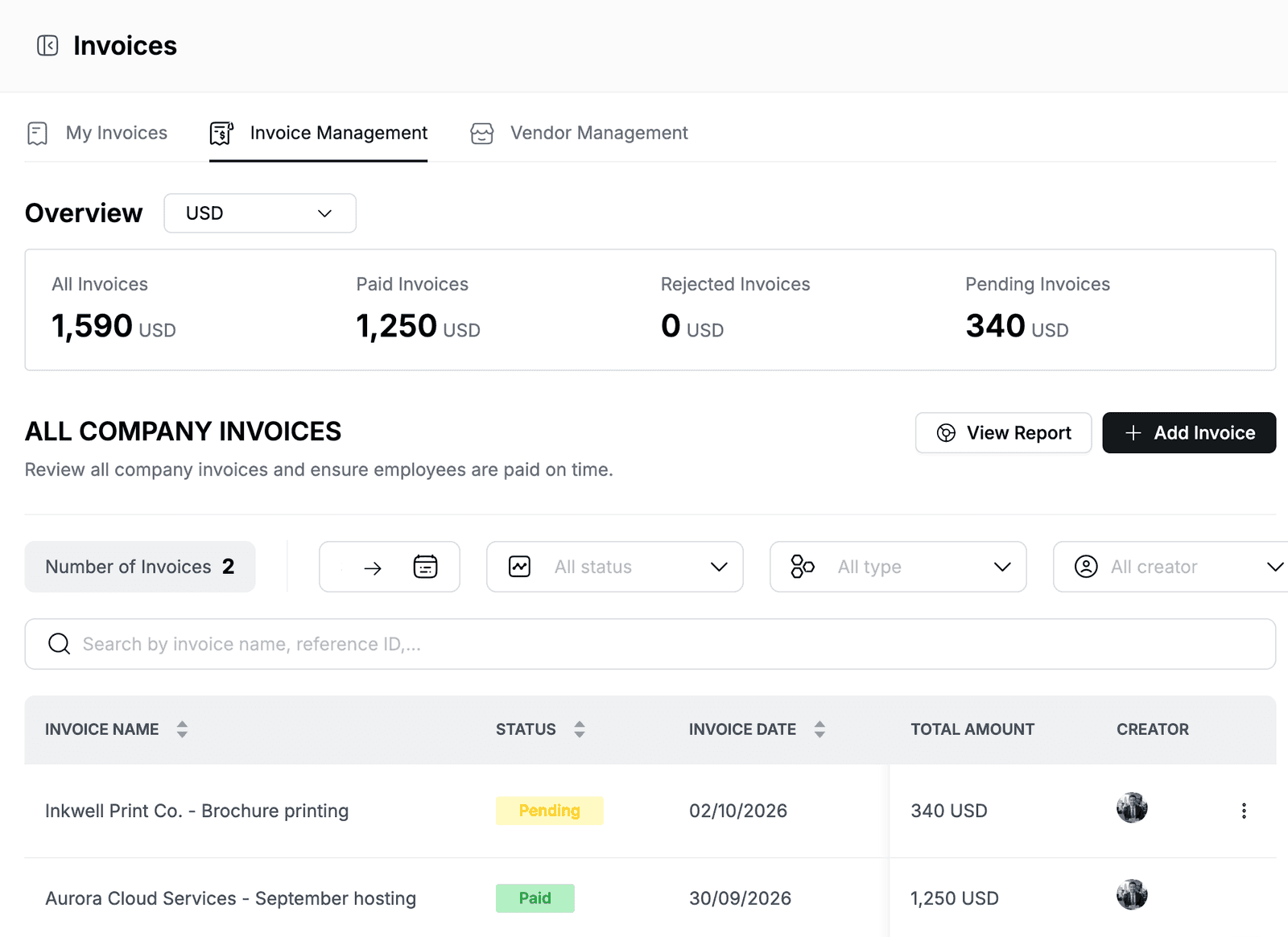
Go to Invoices > Invoice Management. Under Overview, you see the total amount of All Invoices, Paid Invoices, Rejected Invoices and Pending Invoices. To see the totals for another currency, select it next to Overview.
ALL COMPANY INVOICES lists the invoices of everyone in the workspace, with the Creator of each one.
- To filter the list, select a date range, a status, a type or one or more creators, or search by invoice name or reference ID.
- To see all the details of an invoice, double-click it.
- To edit or delete a pending invoice, click ⋮ at the end of its row.
Add an invoice for the company
Use this to record an invoice that the company received directly, for example from a vendor.
- Go to Invoices > Invoice Management.
- Click Add Invoice.
- Fill in the same fields as in Submit an invoice.
- Select the Status: Paid, Pending or Rejected.
- Click Submit.
When an invoice is set to Paid, Hplix fills in its Payment Date with today's date.
Pay or reject invoices
-
Go to Invoices > Invoice Management.
-
In All creator, select the person whose invoices you want to pay.
-
Click Payment.
The Review And Pay Invoices dialog shows the creator's bank account from their profile, their pending invoices and the total amount to pay.
-
Click Paid after you have paid the invoices, or click Reject.
To change the status of a single pending invoice, you can also click ⋮ > Edit invoice, select the Status and click Save.
Manage vendors
Vendor Management keeps a directory of the companies you buy from, with their address, tax code and website. Vendors are a reference list. They are not linked to invoices.
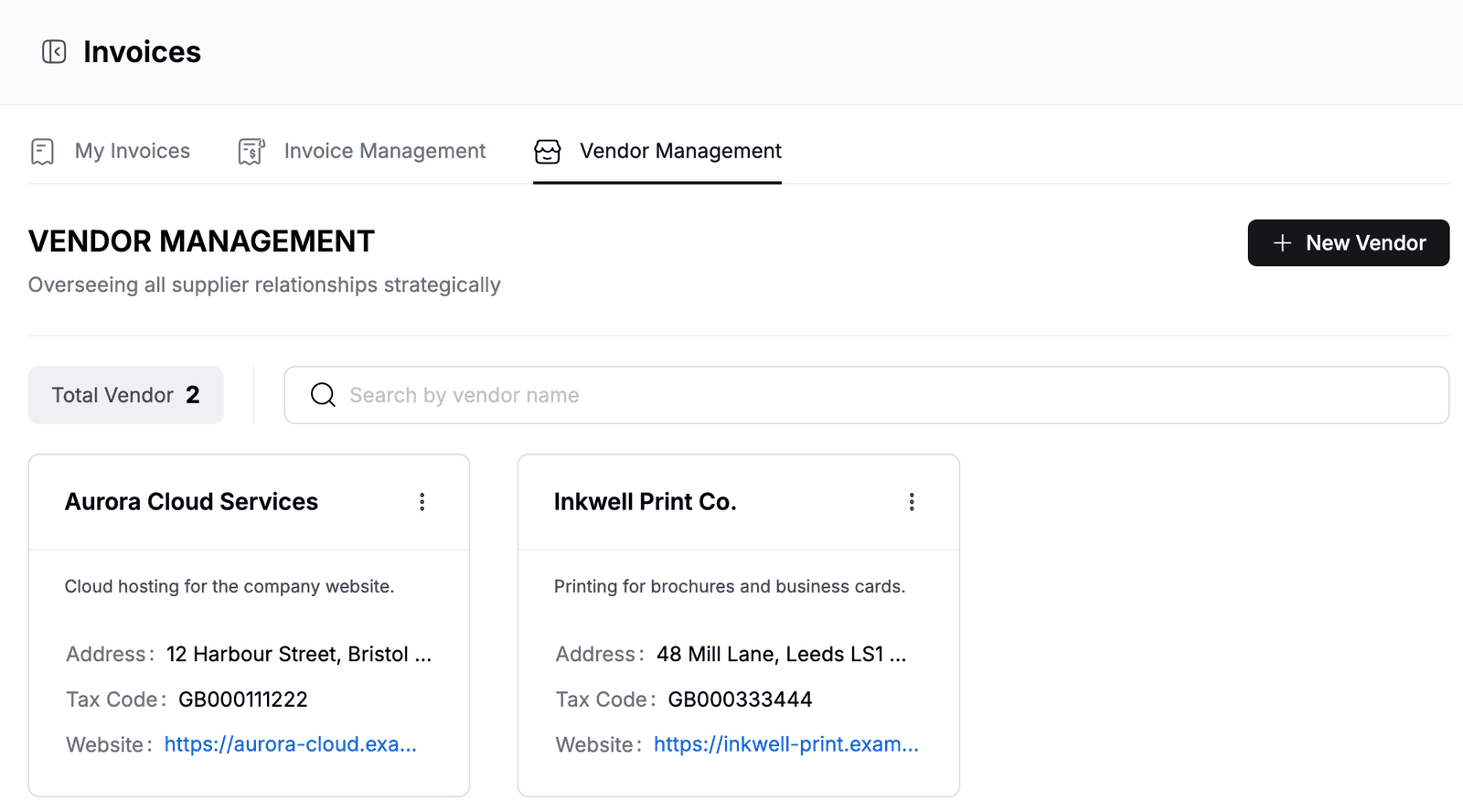
To add a vendor:
- Go to Invoices > Vendor Management.
- Click New Vendor.
- Enter the Vendor Name, for example
Aurora Cloud Services, and optionally a Description, Address, Tax Code and Website. - Click Add.
To find a vendor, type in Search by vendor name. To change or remove a vendor, click ⋮ on its card and click Edit Vendor or Delete.
View and download the invoice report
- Go to Invoices > Invoice Management.
- Click View Report.
The Invoice Reporting page shows the invoice totals, a chart of amounts by invoice type and the list of all company invoices.
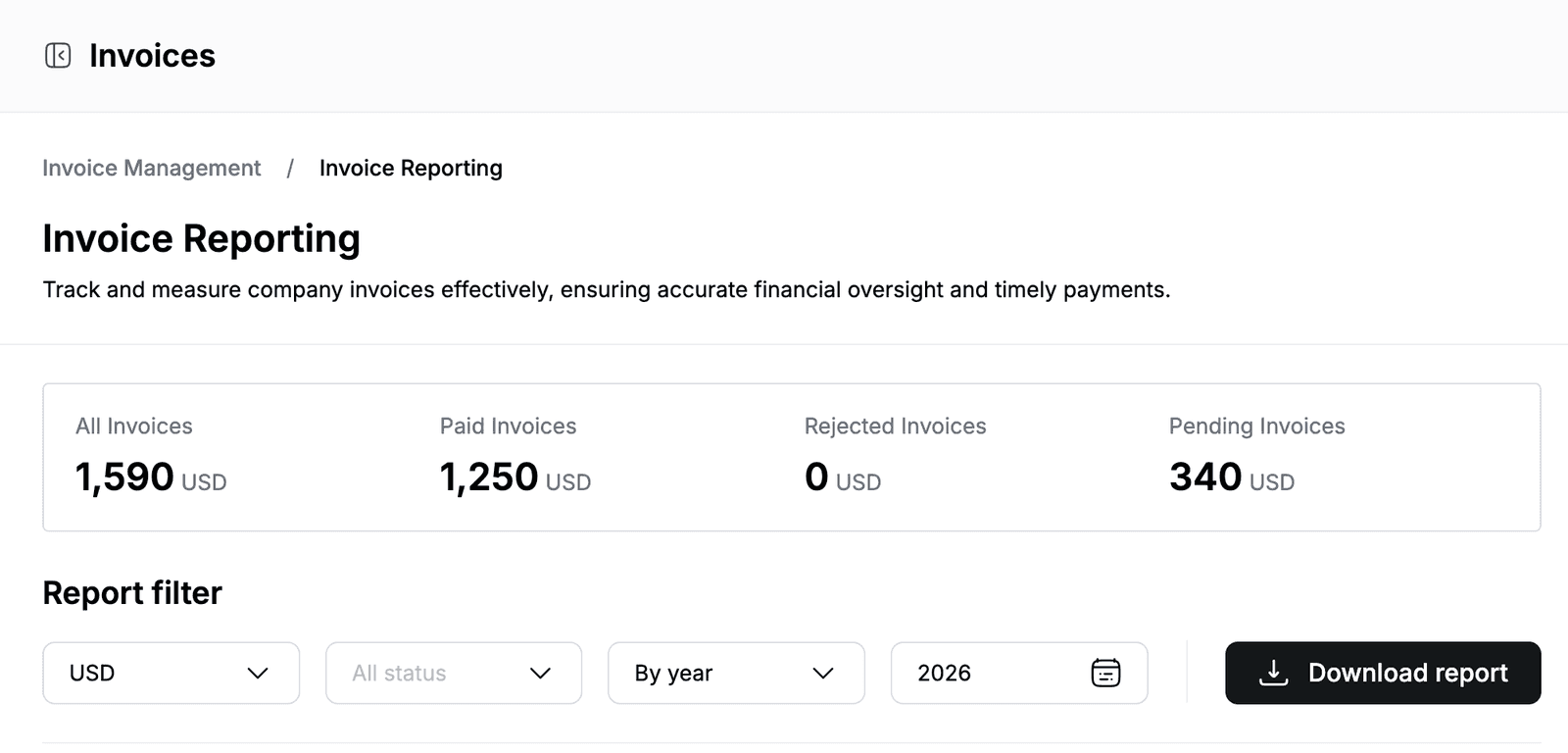
To download the report:
- Under Report filter, select the currency and status.
- Select By year or By month, then select the year or month.
- Click Download report.