
Leave
Request time off, approve or reject leave, track leave balances and set leave types, holidays and the leave policy.
Leave lets employees request time off and send the request to approvers. Admins review everyone's leave, report on absences and set the leave allowance, holidays and policy for the workspace.
Find your way around
Leave Policy at the top right opens your company's leave rules. Below it, the tabs:
| Tab | What it shows |
|---|---|
| My leave requests | Your own requests for the selected month, with their status, and your Leave balance |
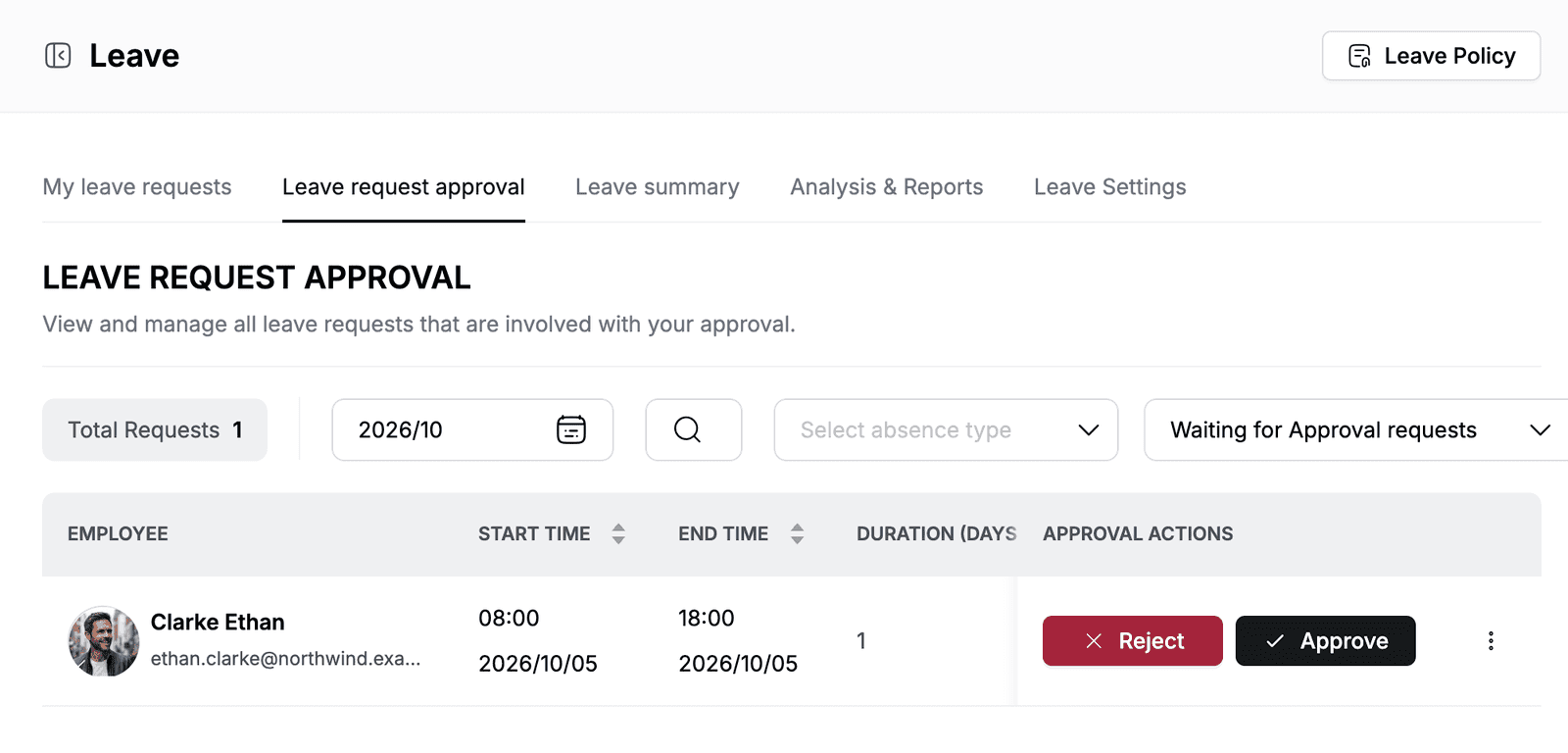
| Leave request approval | Requests where you are an approver. The tab appears once a request is sent to you. |
| Leave summary | Approved leave for everyone in the company, with Total Working Days and Total Leave Days for the month |
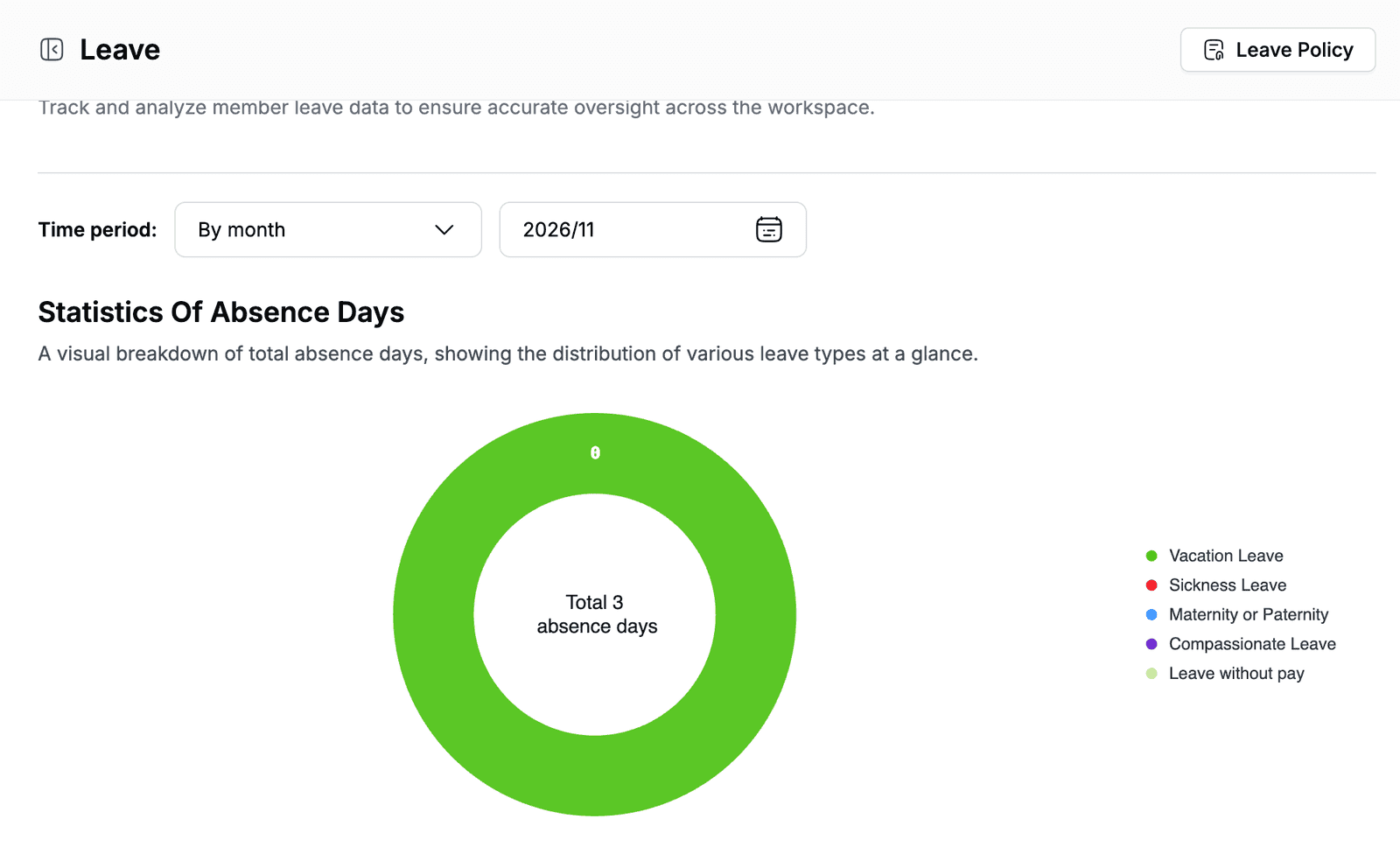
| Analysis & Reports | Absence statistics by month or year, per leave type and per member |
| Leave Settings | Holidays, default leave days, backdated requests, the leave policy and the notification channel |
Request leave
- Go to Leave.
- On the My leave requests tab, click New leave request.
- Under Absence Type, select Vacation Leave, Sickness Leave, Maternity or Paternity, Compassionate Leave or Leave without pay.
- Under Leave Time, pick the start date and time, then the end date and time, and click OK after each. Duration shows the number of days.
- Enter a Leave Reason, for example
Family trip to Edinburgh. - Under Approvers, select one or more people.
- Click Submit.
The request shows Waiting for Approval until an approver decides. The approvers get a notification.
A day starts at 08:00 or 13:00 and ends at 12:00 or 18:00. To take a whole day, start at 08:00 and end at 18:00. To take half a day, start at 13:00 or end at 12:00.
Dates in the past
You can request leave for past dates only if an admin allows backdated requests. See Allow backdated requests.
Check your leave balance
On the My leave requests tab, Leave balance shows how many days you have left. Click the info icon next to it to see the Leave Balance Breakdown: Total leave days allocated, Leave taken and Leave remaining.
The allocation comes from the default leave days set by an admin. See Set default leave days.
Add leave for an employee
If someone cannot submit a request themselves, for example because they are off sick, add it for them.
- Go to Leave > Leave summary.
- Click Add Leave Record.
- Select the Employee.
- Fill in Absence Type, Leave Time, Leave Reason and Approvers as for your own request.
- Click Submit.
The record goes to the approvers like any other request.
Approve or reject leave
- Go to Leave > Leave request approval.
- The list shows Waiting for Approval requests for the selected month. Use the search and the absence type filter to narrow it down.
- On the request's row, click Approve or Reject.
- Click Confirm.
You can also click the request's notification. It opens Leave Request Details with the dates, duration, reason and approvers, and the Reject and Approve buttons.
Approved leave is added to the Leave summary and the reports. To see requests you already decided, choose Approved requests or Rejected requests in the status filter.
To change or remove a request, click ⋮ at the end of its row and select Edit request or Delete request.
View the leave summary
- Go to Leave > Leave summary.
- Pick the month.
- Optional: use the search or select an absence type.
The table lists each approved leave with the employee, start and end time, duration, absence type, reason and approvers. Total Working Days and Total Leave Days sum up the month.
View leave reports
- Go to Leave > Analysis & Reports.
- Under Time period, choose By month or By year, then pick the month or year.
Statistics Of Absence Days shows the total absence days split by leave type. Member Absence Details lists each member with the number of leaves taken, the days per absence type and the total duration. Search by employee name or email to find someone.
To export the report, click Download report.
Set up leave for your workspace
Go to Leave > Leave Settings and click Update next to the setting you want to change. The settings apply to everyone in the workspace.
Add holidays
- Next to Holiday Settings, click Update.
- Select the year and click New holiday.
- Enter a Holiday Name, for example
Christmas Day. - Pick the Date(s). For a one-day holiday, pick the same start and end date.
- Optional: add a Description, for example
UK bank holiday. - Click Add.
To change or remove a holiday, use the edit and delete icons in its row.
Set default leave days
- Next to Default Annual Leave Days, click Update.
- Enter the days for Vacation Leave and Sickness Leave, for example
25and10. - Click Save.
Balances change for everyone
Changing the default leave days changes the leave balance of every employee. If Sickness Leave is 0, employees cannot select it when they request leave.
Allow backdated requests
- Next to Backdated Leave Requests, click Update.
- Turn on Allow backdated requests.
- Enter the Maximum Days In The Past, for example
7. - Click Save.
Write the leave policy
- Next to Leave Policy, click Update.
- Enter your leave rules, for example how many days people get and how far ahead they must request leave. Use the toolbar to format the text.
- Click Save.
To read the policy, click Leave Policy at the top of the page. To change it from there, click Update document.
Send new requests to a channel
Turn on Notification Channel to post an alert in a Messages channel whenever someone submits a leave request.