
Clients
Keep a list of the companies you work for and see the projects you run for each one.
Clients lists the companies you work for, inside or outside your organization. Each client groups the projects you run for it, so you can see their status, stage and team size in one place.
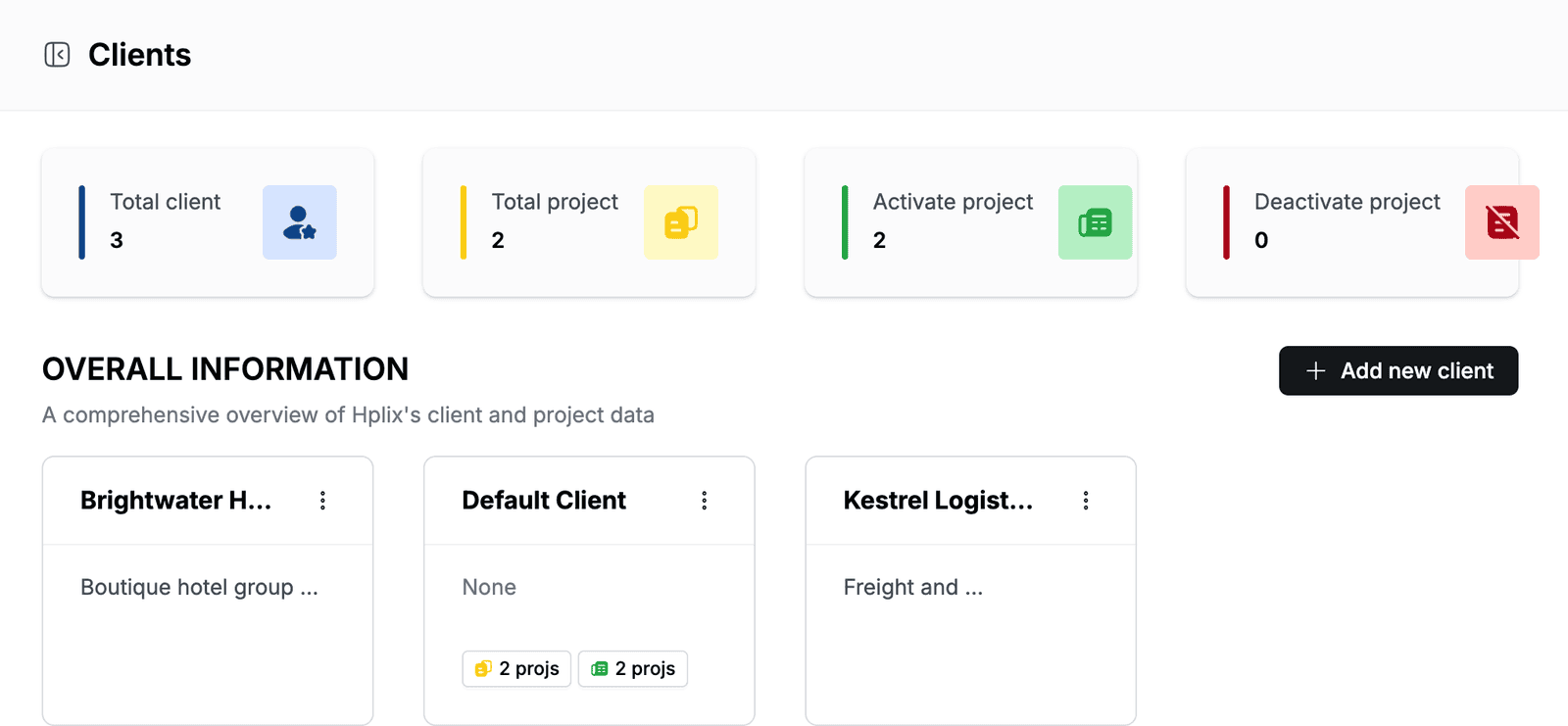
View your clients
Go to Clients. The cards at the top show the Total client, Total project, Activate project and Deactivate project counts for the workspace.
Under OVERALL INFORMATION, each client has a card with its name and the start of its description. If the client has projects, the card also shows how many projects it has in total and how many are active.
Every workspace starts with a Default Client, which holds the built-in Default Project. You can use it for internal work.
Add a client
- Go to Clients and click Add new client.
- Under Select Client Type, select:
- External for clients outside your organization.
- Internal for in-house clients.
- Enter the Client Name, for example
Brightwater Hotels. - Optional: enter Descriptions, such as what the client does and who your contact is.
- Click Add new client.
The new client appears in the list.
Contact details
A client has no separate fields for contacts, addresses or phone numbers. Add them to Descriptions so your team can find them on the client's page.
View a client's projects
Go to Clients and click a client card. The client's page shows its Description, the Employees working on its projects and the Last Updated date.
OVERALL BOARD lists the client's projects with their STATUS, LAST UPDATED date, TOTAL MEMBER count, STAGE, GO LIVE setting, START DATE and END DATE. To sort the list, click the arrows next to a column name.
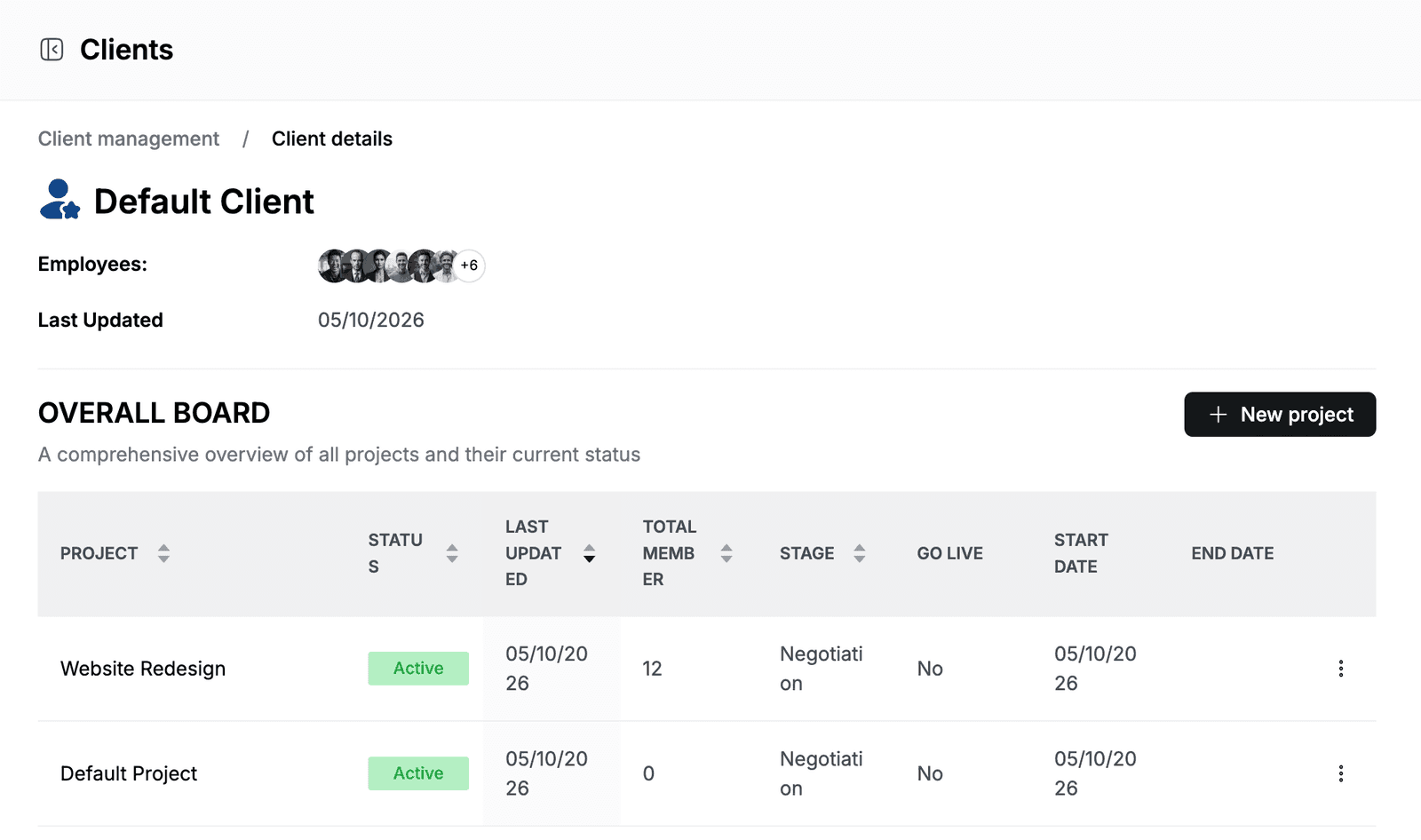
To go back to the list, click Client management at the top of the page.
Add a project to a client
- Open the client and click New project. If the client has no projects yet, click New project under You have no projects yet.
- Fill in the project details and click Add new project.
For the project fields, see Projects. To add people to a project, see Add project members.
To change a project, click ⋮ in its row and click Edit project.
Edit a client
- Go to Clients.
- Click ⋮ on the client card and click Edit client.
- Change the Client Type, Client Name or Descriptions.
- Click Update.
Deactivate a client
- Go to Clients.
- Click ⋮ on the client card and click Deactivate.
- Check the client name and description in the Deactivate client dialog, and click Deactivate.
The Deactivate option is not available for Default Client. Clients cannot be deleted.