
Messages
Chat with your team in channels and direct messages, reply to messages and link people, channels and tasks.
Messages is your team's chat. Use channels for conversations around a team or topic, and direct messages (DMs) for one-to-one or small group conversations.
Before you begin
Messages asks you to confirm who you are each time you open it. On Verify your identity, choose Continue with passkey, Continue with Password or Passcode or Use mobile app.
Send a message in a channel
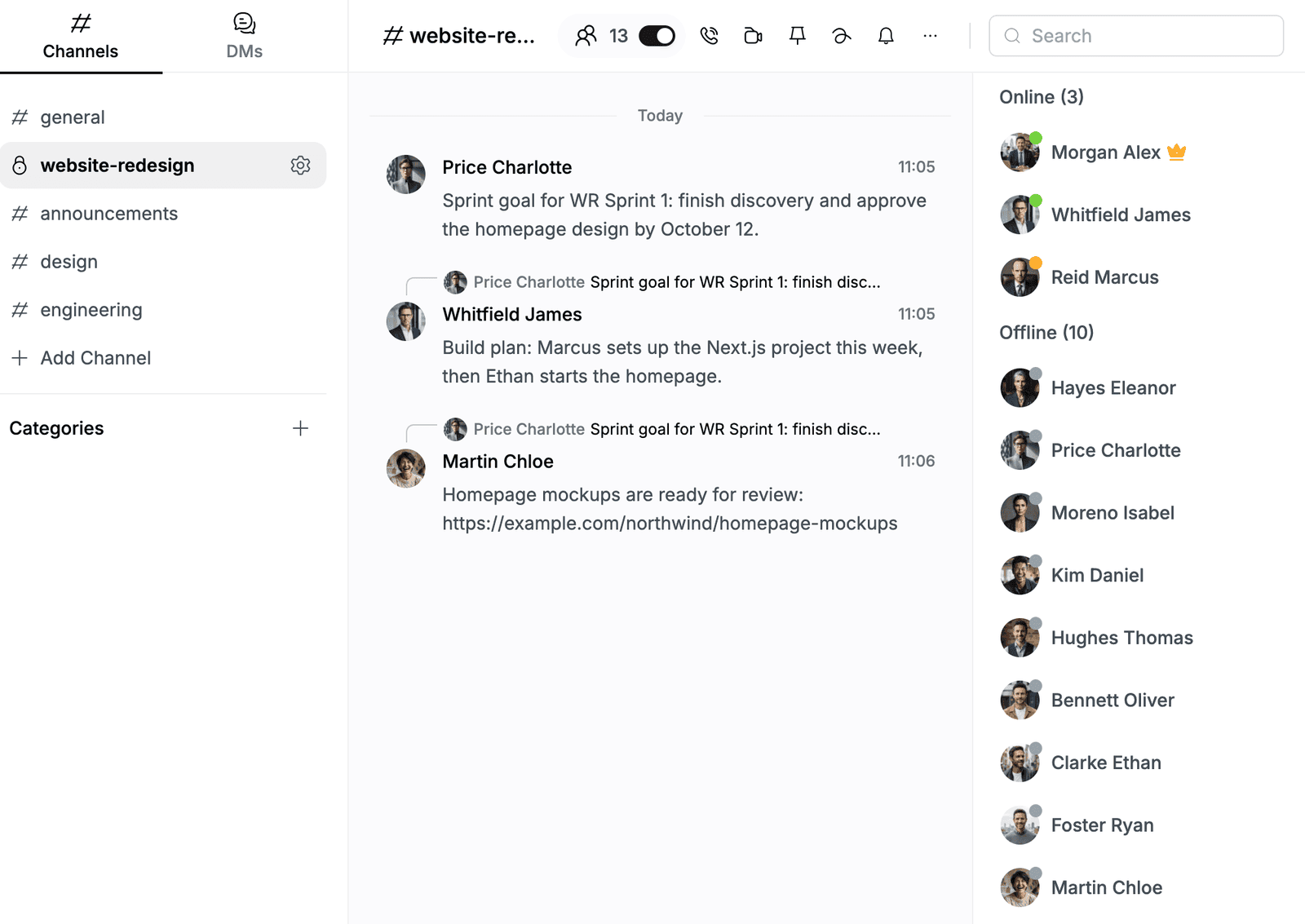
- Go to Messages. The Channels tab lists the channels you belong to. A # marks a public channel and a lock marks a private one.
- Click a channel, for example
general. - Type in the message box at the bottom and press Enter.
The panel on the right shows the channel members who are online and offline.
Mention people, channels and tasks
Type one of these characters in the message box. To see the list in the app, click @ in the message box.
| Type | To | Example |
|---|---|---|
| @ | Mention a user | @name |
| # | Link a channel | #design |
| ! | Link a Planix task by its key | !WR-3 |
Reply to or act on a message
Right-click a message to open its menu. The row at the top adds an emoji reaction.
| Action | Result |
|---|---|
| Reply | Posts your reply in the conversation with a quote of the original message. |
| Create Thread | Starts a thread from the message. |
| Create Task | Creates a task from the message. |
| Forward | Sends the message to another conversation. |
| Copy Text / Copy Message Link | Copies the text or a link to the message. |
| Mark Unread | Marks the message as unread for you. |
| Pin Message | Pins the message to the conversation. |
On your own messages, the menu also has Edit and Delete Message.
Send a direct message
- Go to Messages and click the DMs tab.
- Find the person in the list and click the send icon next to their name.
- Type your message and press Enter.
To reopen a conversation, use Jump to a conversation (⌘K). You can also click New Message, select people under Add User and click Add.
Create a channel
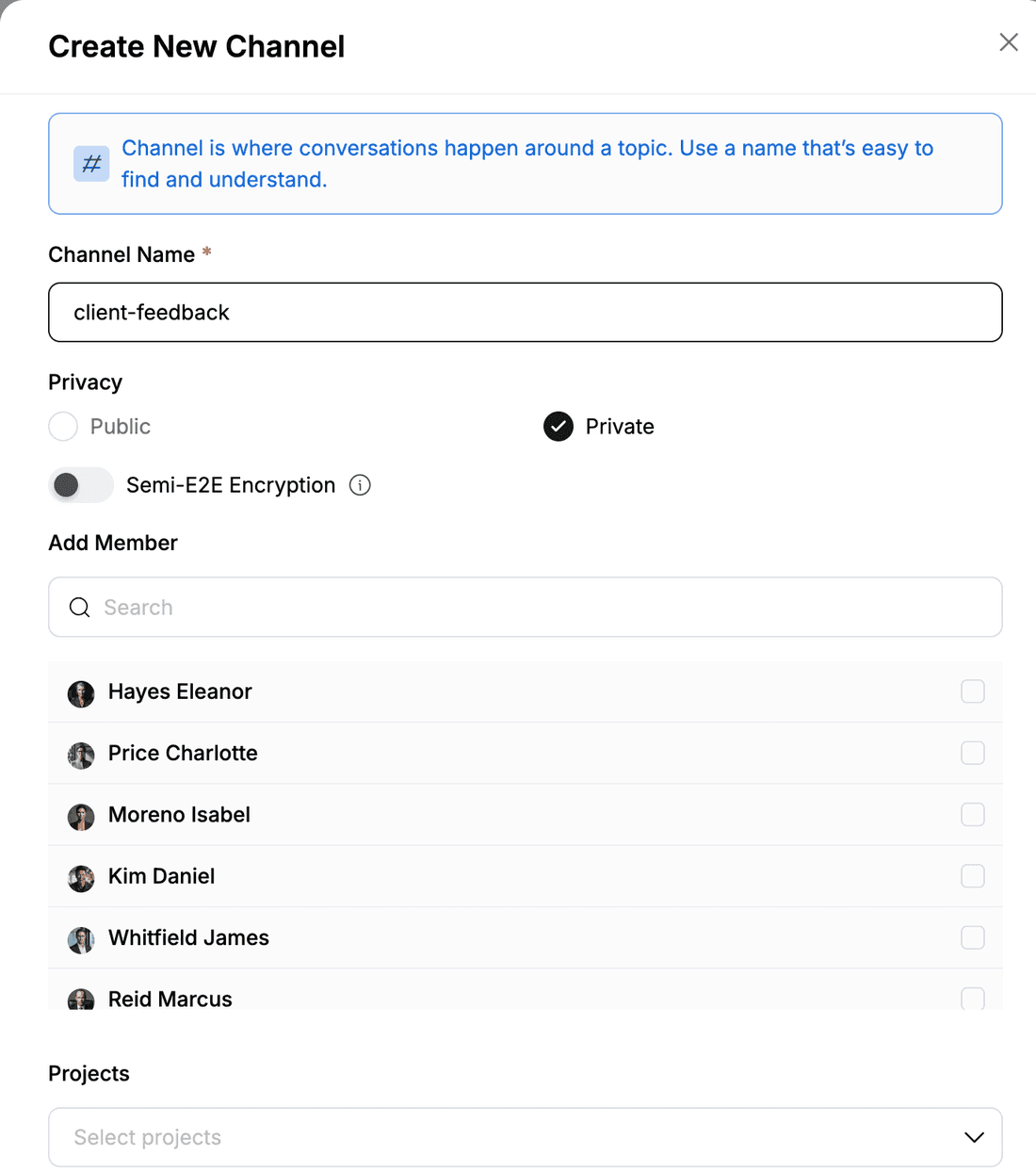
- Go to Messages and click Add Channel.
- Enter a Channel Name, for example
design. - Under Privacy, select Public or Private.
- For a private channel:
- Select the people to add under Add Member.
- Optional: link the channel to one or more Projects.
- Turn on Semi-E2E Encryption if the channel needs it.
- Click Add.
A public channel includes everyone in the workspace. Only the people you add can see a private channel.
Manage a channel
Click the gear icon next to the channel name in the list. Channel details opens with these sections:
| Section | What you can do |
|---|---|
| Members | See and search the channel members. |
| Media & Files | Browse the Images, Videos and Files shared in the channel. |
| Settings | Change the Channel Name, Privacy and Category, choose when inactive threads are hidden from the channel list, and add Webhooks. Click Save when you are done. |
| Permissions | Make people Channel Manager with Add Members. |
| Delete Channel | Delete the channel. |