
Spreadsheet
Create spreadsheets with formulas and formatting, share them with your team and download them as Excel, CSV or PDF.
Spreadsheet lists the spreadsheets in your storage and opens them in the spreadsheet editor. Use it for budgets, trackers and any other data you work on with your team.
Find your way around
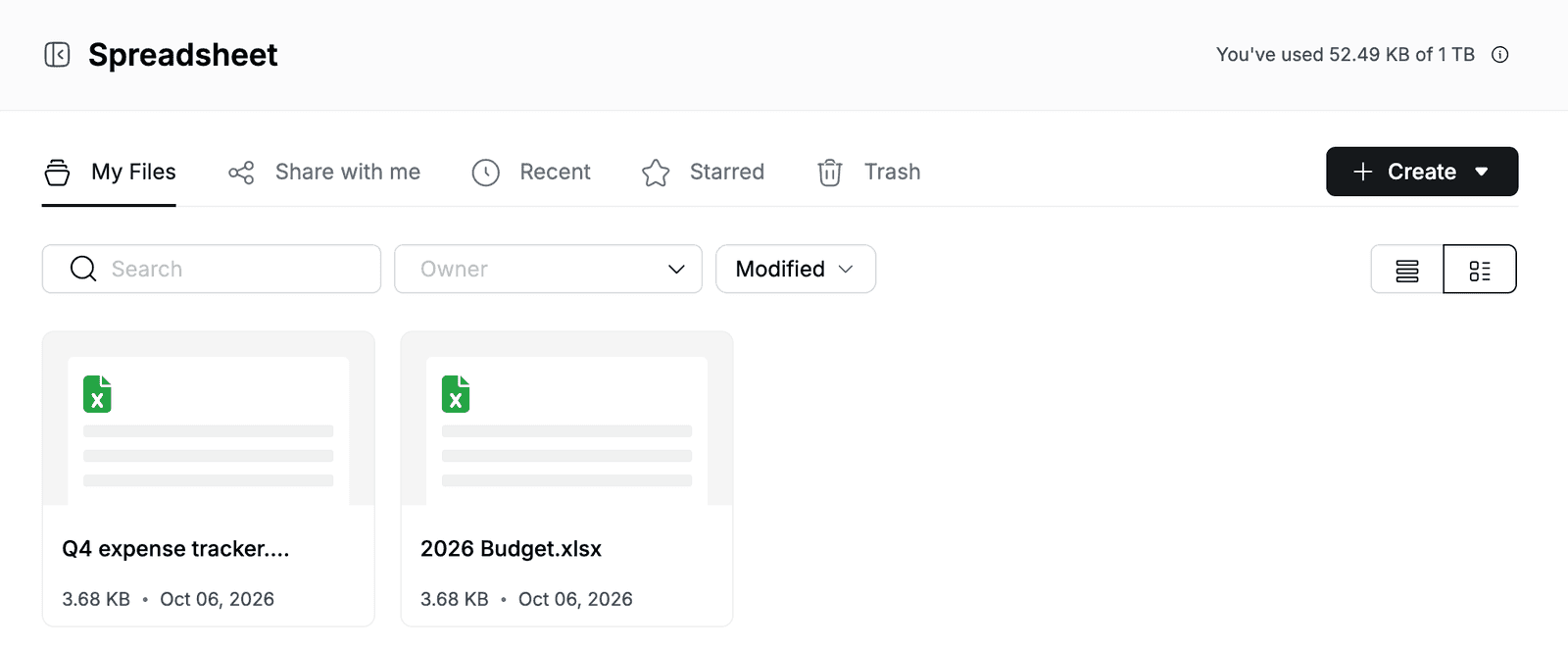
- My Files lists the spreadsheets and folders you own. Share with me, Recent, Starred and Trash work the same way as in My Storage.
- Use Search, the Owner filter and the Modified sort to find a file. Switch between list and grid view with the icons on the right.
- The storage you have used is shown at the top right.
Create a spreadsheet
- Go to Spreadsheet.
- Click Create > Create Sheet.
- In Create File, select Blank, or pick a template, for example Budget Planner under Finance.
The spreadsheet opens in a new browser tab with the name new-sheet. To rename it, click the name at the top left, type a new name, for example 2026 Budget, and press Enter.
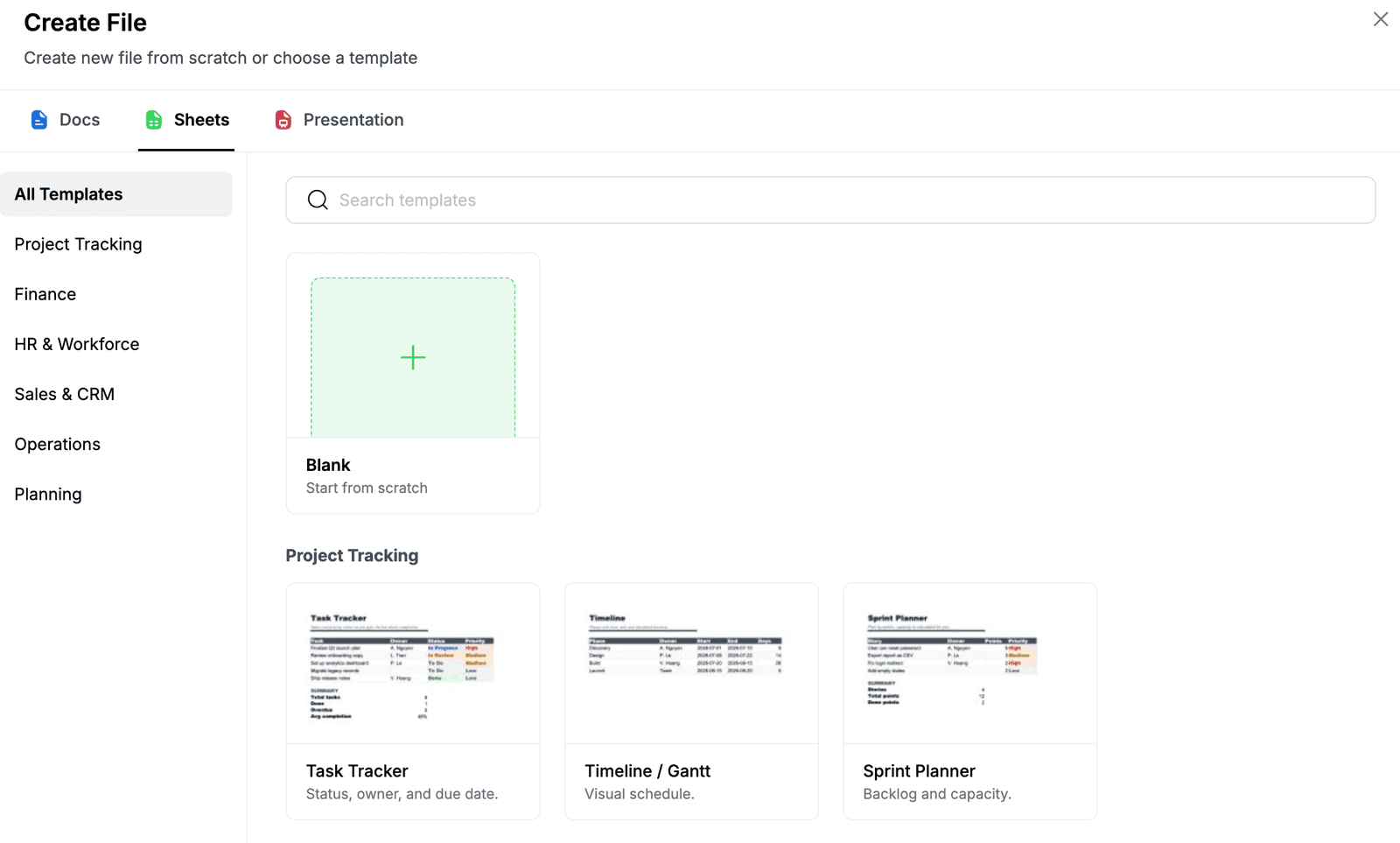
The templates are grouped into Project Tracking, Finance, HR & Workforce, Sales & CRM, Operations and Planning.
To add an existing file instead, click Create > File upload. Create > New Folder adds a folder.
Enter data and formulas
- Click a cell and type a value.
- Press Tab to move to the next cell in the row, or Enter to go to the start of the next row.
- To calculate a value, start with
=. For example, enter=SUM(B2:E2)to add up the cells from B2 to E2.
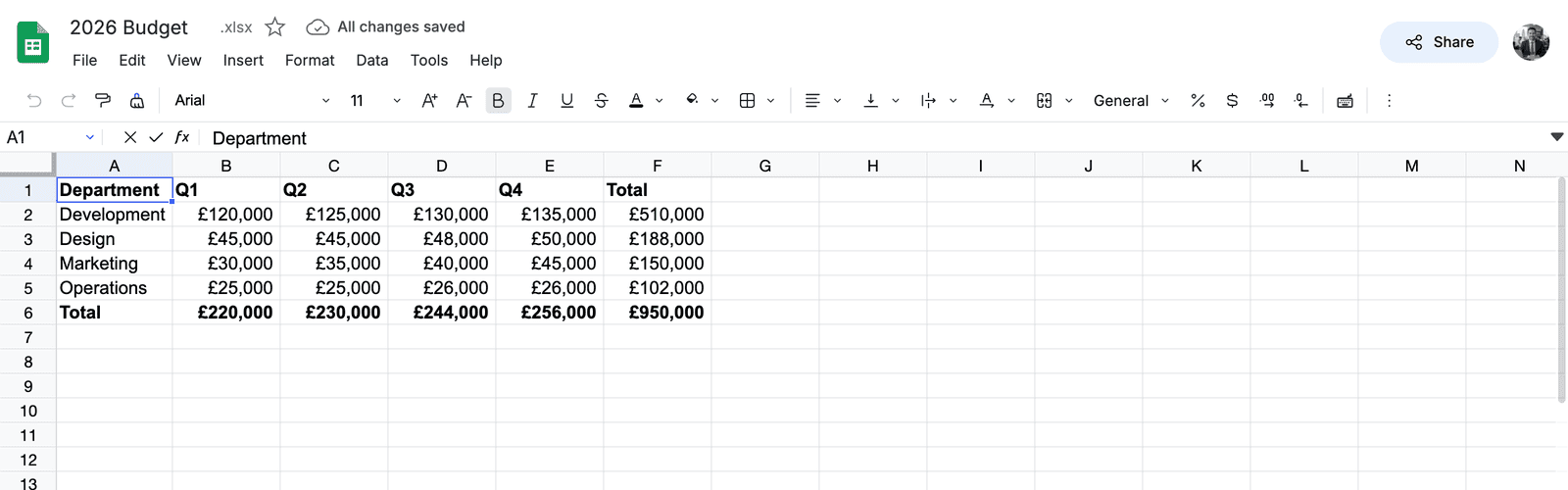
Changes save automatically. All changes saved appears next to the file name.
When you select several cells, the bar at the bottom shows their Sum, Average, Count, Min and Max.
Format cells
Select the cells, then use the toolbar or the Format menu:
- Bold, Italic, Underline and Strikethrough, font, size, text color, fill color, borders and alignment.
- Number formats: Number: automatic, Number: 1,000.12, Percent, Currency and Plain text.
- Merge cells, Unmerge cells and Clear formatting.
Show amounts in another currency
Currency in the Format menu uses the dollar sign. To use pounds or another currency:
- Select the cells.
- On the toolbar, open the number format list, which shows the current format, for example General. On a narrow screen, click the more icon (⋮) first.
- At the bottom of the list, click Formats.
- In Number format, check that Format types is Currency.
- Choose the Currency Symbol, for example £, and set Decimal places.
- Click Confirm.
Change column width
Right-click a column letter. Enter a Column Width in pixels, or click Fit for data to fit the widest value. The same menu inserts, hides and deletes columns.
Work with sheets
The sheet tabs are at the bottom of the editor.
- Click + to add a sheet.
- Double-click a tab to rename it.
- Right-click a tab to Delete, Copy, Rename, Change color, Hide or Unhide a sheet.
Share a spreadsheet
- In the editor, click Share > Share.
- Under Invite team members, search for a person by name or email and select them.
- Choose what they can do: Full access, Can edit or Can view.
- Click Done.
Under Share with space members, choose who else can open the file:
| Option | Who can open the file |
|---|---|
| Only people invited | Only the people you added |
| Everyone at your workspace | Every member of the workspace |
| Everyone has this link | Anyone with the link |
To copy the link, click Share > Copy link in the editor, or Copy link in the share dialog.
Save and restore versions
- To keep the current state, click File > Save a version.
- To see earlier versions, click File > Version history. Select Only show named versions to hide automatic versions.
- Click the menu next to a version to Restore this version, Name this version or Make a copy.
Download a spreadsheet
In the editor, click File > Download and choose a format:
- Microsoft Excel (.xlsx)
- Comma Separated Values (.csv)
- PDF Document (.pdf)
- Download as JSON
In the file list, you can also right-click a spreadsheet and click Download.
Manage spreadsheets in the list
Right-click a spreadsheet, or click … next to its name, to:
- Open, Rename or Make a copy of it.
- Share it or Move it to a folder.
- Add to starred so it appears under Starred.
- See File details, such as who has access, size and owner.
- Remove it. The file moves to Trash, where you can restore it.