
Recruitment
Run hiring campaigns with interview rounds, a hiring team and shared evaluation criteria.
Recruitment helps HR and hiring managers run hiring campaigns. Each campaign describes one open role, the rounds candidates go through and the people who handle each round.
Before you begin
Go to HR & Workforce > Recruitment. If you do not see Recruitment in the sidebar, ask a workspace administrator for access.
The Hiring Campaigns page lists every campaign as a card. Each card shows the department, contract type and salary range, the number of candidates in each round and the hiring team for each round.
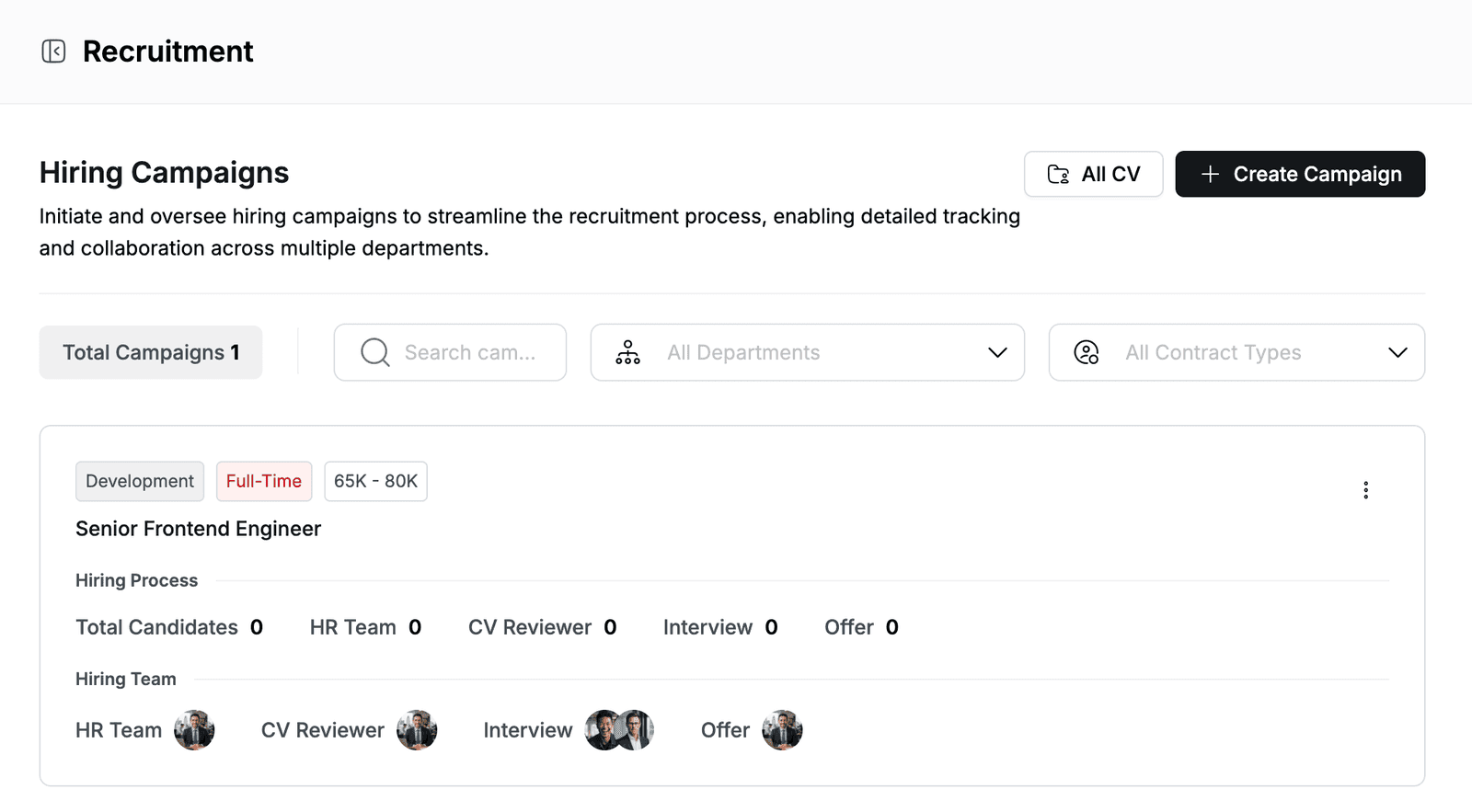
To find a campaign, search by name or filter by All Departments and All Contract Types.
Set up evaluation criteria
Evaluation criteria are the skills you assess candidates on, such as Technical skills or Communication. Criteria are shared by all campaigns in the workspace, and each criterion can have sub-criteria.
- Go to Recruitment and click Create Campaign.
- Open the Evaluation Criteria list and click Setting Evaluation. The Evaluation Criteria Management dialog opens.
- Click Add new evaluation (or Add New Criteria if criteria already exist) and enter a name, for example
Technical skills. - Expand the criterion and click Add Sub-Evaluation. Enter a sub-criterion, for example
React and TypeScript. Repeat for each sub-criterion. - Click Update.
The new criteria appear in the Evaluation Criteria list. To remove a criterion, click its delete icon in Evaluation Criteria Management and click Update.
Create a campaign
-
Go to Recruitment and click Create Campaign.
-
On the Campaign Info step, fill in the details:
Field Description Campaign Name The role you are hiring for, for example Senior Frontend Engineer. Required.Department The department the role belongs to. Required. Contract Type Full-Time, Freelancer, Probation, Part-Time or Internship. Required. Start Date / End Date When the campaign runs. The start date cannot be in the past. Salary Range Minimum and maximum salary, for example 65000and80000.Evaluation Criteria One or more criteria to assess candidates on. See Set up evaluation criteria. Job Description The role description. Use the toolbar for lists and checklists. Required. -
Click Continue.
-
On the Setup Round step, set up the interview rounds. See Set up interview rounds.
-
Click Create.
The campaign page opens with the campaign details at the top and the Hiring Process board below.
Set up interview rounds
Interview rounds are the stages candidates move through, in order. Every campaign starts with two rounds: HR Team (prepare the candidate profile and CV) and CV Reviewer (review and shortlist CVs). You cannot rename or remove these two rounds, but you can change their descriptions.
On the Setup Round step:
- To add a round, click Add New Round. Enter a round name, for example
Interview, and a description, for exampleTechnical interview with the development team. - To assign the hiring team, click Unassigned on a round and select one or more members. Click outside the list to close it.
- To remove a round you added, click its delete icon.
The assigned members appear under Hiring Team on the campaign card.
View a campaign
Double-click a campaign card to open it.
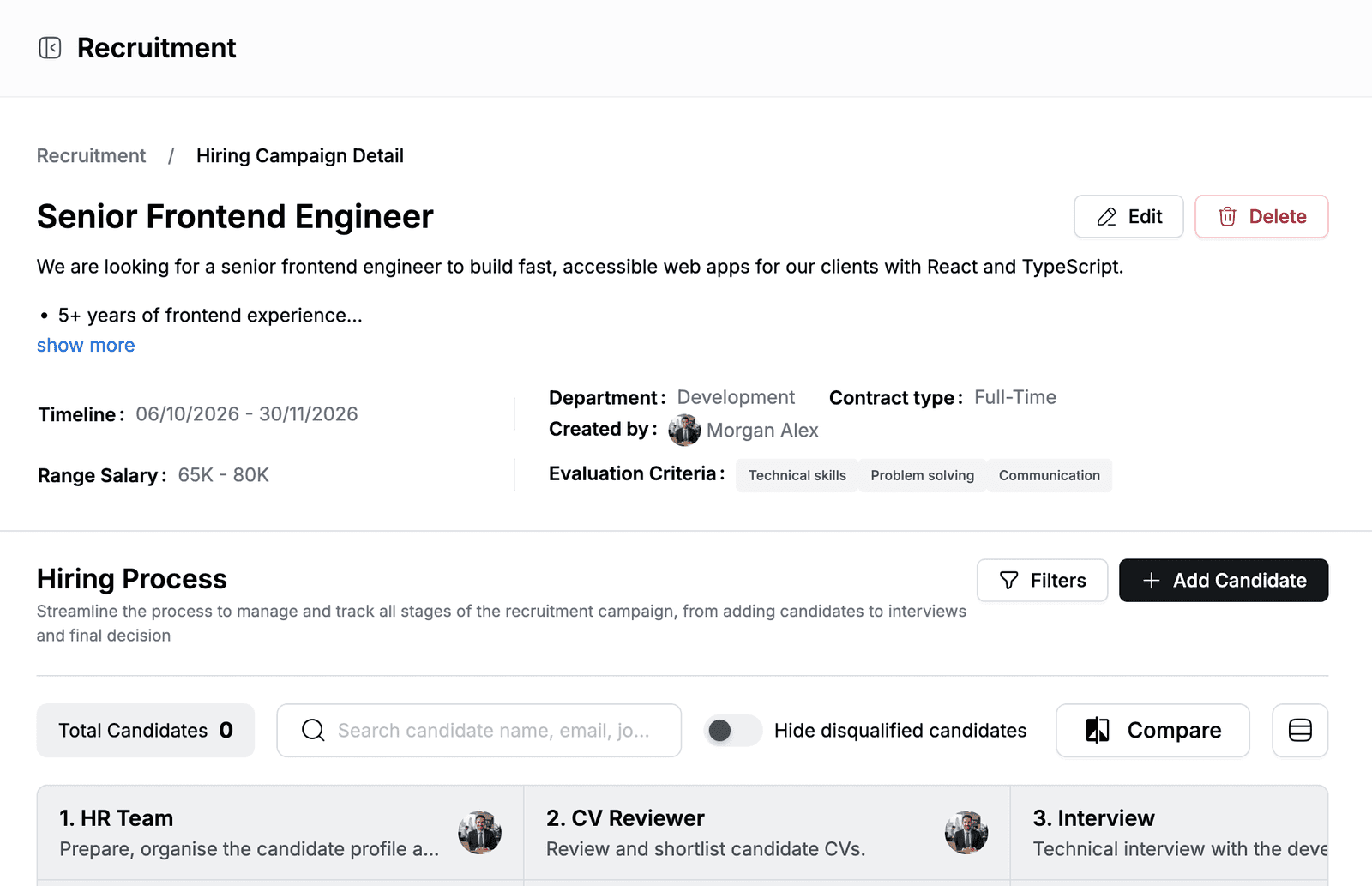
- The top section shows the Timeline, Range Salary, Department, Contract type, Created by and Evaluation Criteria. Click show more to read the full job description.
- The Hiring Process board has one column per interview round, with the round's description and hiring team.
- To find candidates, use the search box or Filters (Level, Programming Language, Range Salary and Interview Status). Turn on Hide disqualified candidates to show only active candidates.
- Click Compare to open Candidate Evaluation Comparison, a table of candidates and their overall evaluation result.
Edit or delete a campaign
To change a campaign, open it and click Edit, or click ⋮ on its card and click Edit. The Edit Campaign dialog has the same two steps as Create Campaign. Make your changes, click Continue, then click Edit.
To delete a campaign, open it, click Delete and confirm with Delete. The ⋮ menu on the campaign card also has Delete.
Deleting a campaign
Deleting a campaign cannot be undone.
View all CVs
Click All CV on the Hiring Campaigns page to see the candidates from every campaign in one table. You can filter by Campaigns, Level, Stage and Interview Status, and search by candidate name or email.