
Sign in & account
Sign in to Hplix with a password, passkey or the mobile app, and manage your profile, security and notifications.
Your Hplix account is the same in every workspace you belong to. Sign in with your email and password, a passkey or the Hplix mobile app, then use Account Settings to manage your profile and security.
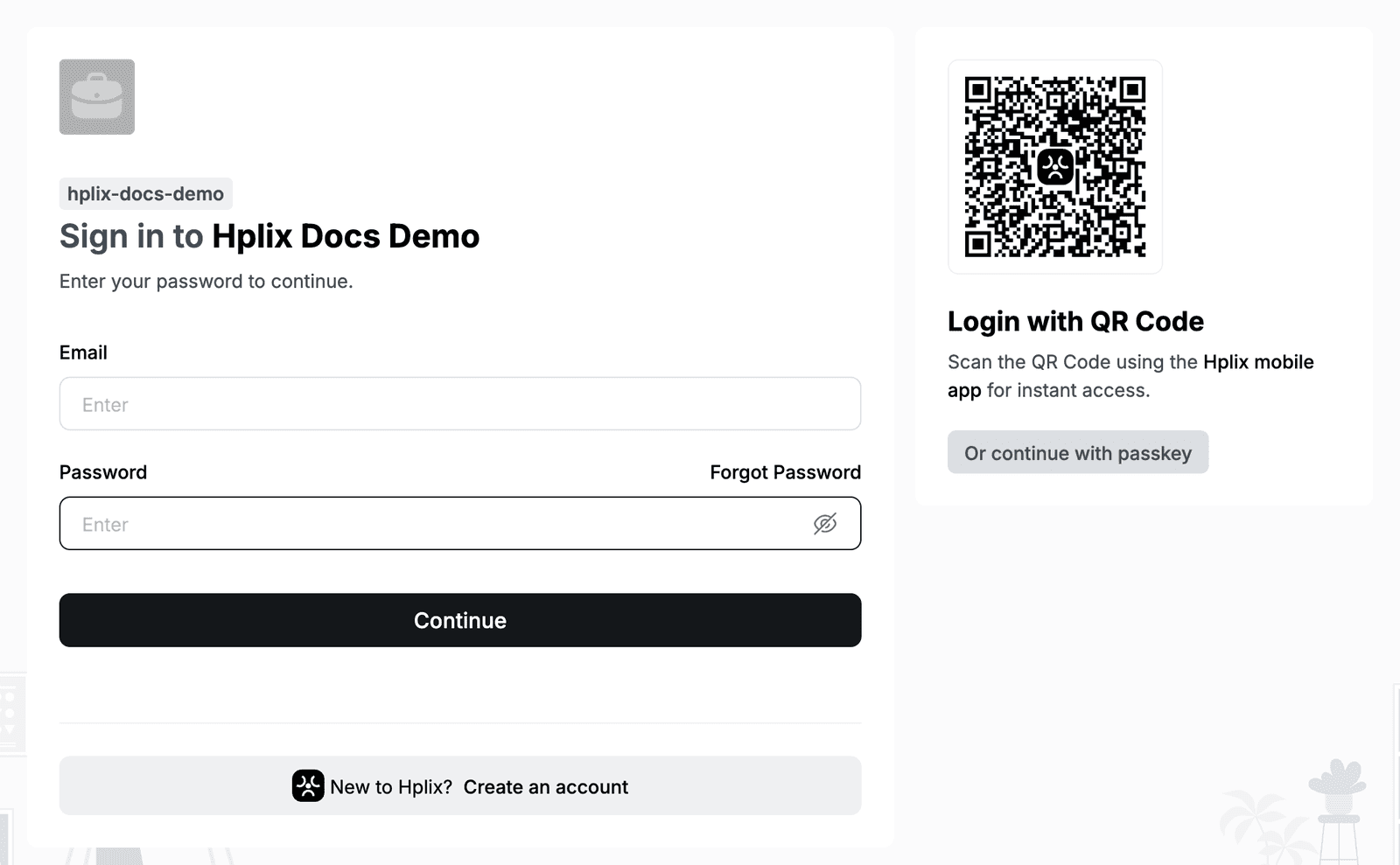
Sign in to your workspace
- Open your workspace address, or go to app.hplix.com/login.
- Enter your Email. If the page asks for your email first, click Continue.
- Enter your Password and click Continue.
When you open your workspace address, the page shows Sign in to followed by the workspace name.
Sign in with a passkey
A passkey lets you sign in with your device's fingerprint, face or PIN instead of a password. You first add a passkey in Account Settings (see Add a passkey).
- On the sign-in page, click Or continue with passkey.
- Confirm with your device when your browser asks.
Sign in with the mobile app
The sign-in page shows a QR code under Login with QR Code. Scan it with the Hplix mobile app to sign in without typing your password.
Reset your password
- On the sign-in page, click Forgot Password.
- On Password recovery, check the Email. To use another address, click Edit.
- Click Request.
Hplix sends you a password reset email. To go back without resetting, click Back to Sign in.
Create an account
- On the sign-in page, click Create an account, or go to app.hplix.com/signup.
- Enter your Email, First Name and Last Name.
- Enter a password in Create Password.
- Click Continue.
If you were invited to a workspace, open the invitation email and follow its link instead. See Workspaces.
Verify your identity
Some areas, such as Messages, ask you to confirm who you are before they open. On Verify your identity, choose one of:
- Continue with passkey
- Continue with Password or Passcode
- Use mobile app
Your passcode is a 6-digit code you set for your account. You can change it in Account Settings > Security.
Open Account Settings
- Click your name at the bottom of the sidebar.
- Click Account Settings.
Account Settings has five tabs: Global Profile, Workspace Profiles, Security, Notifications and Your Devices.
Update your profile
Your global profile is shared by all your workspaces.
- Go to Account Settings > Global Profile.
- Under Personal Information, upload a Profile Photo (PNG or JPG up to 5 MB, 256×256 px recommended) and edit your name, Phone Number, Birthday, Gender and Address.
- Optional: fill in Bank Details and Identity Information, such as your National ID Number and Tax Identification Number.
- Click Save changes. To discard your edits, click Reset.
To change your sign-in email, click Change next to Email.
Workspace Profiles lists the workspaces you belong to, with your Workspace Role, Employment Type, Department, Job Title and Profile Status in each. Workspace owners and admins manage these details. Click View in Workspace to open the workspace.
Secure your account
Go to Account Settings > Security to manage how you sign in and verify your identity.
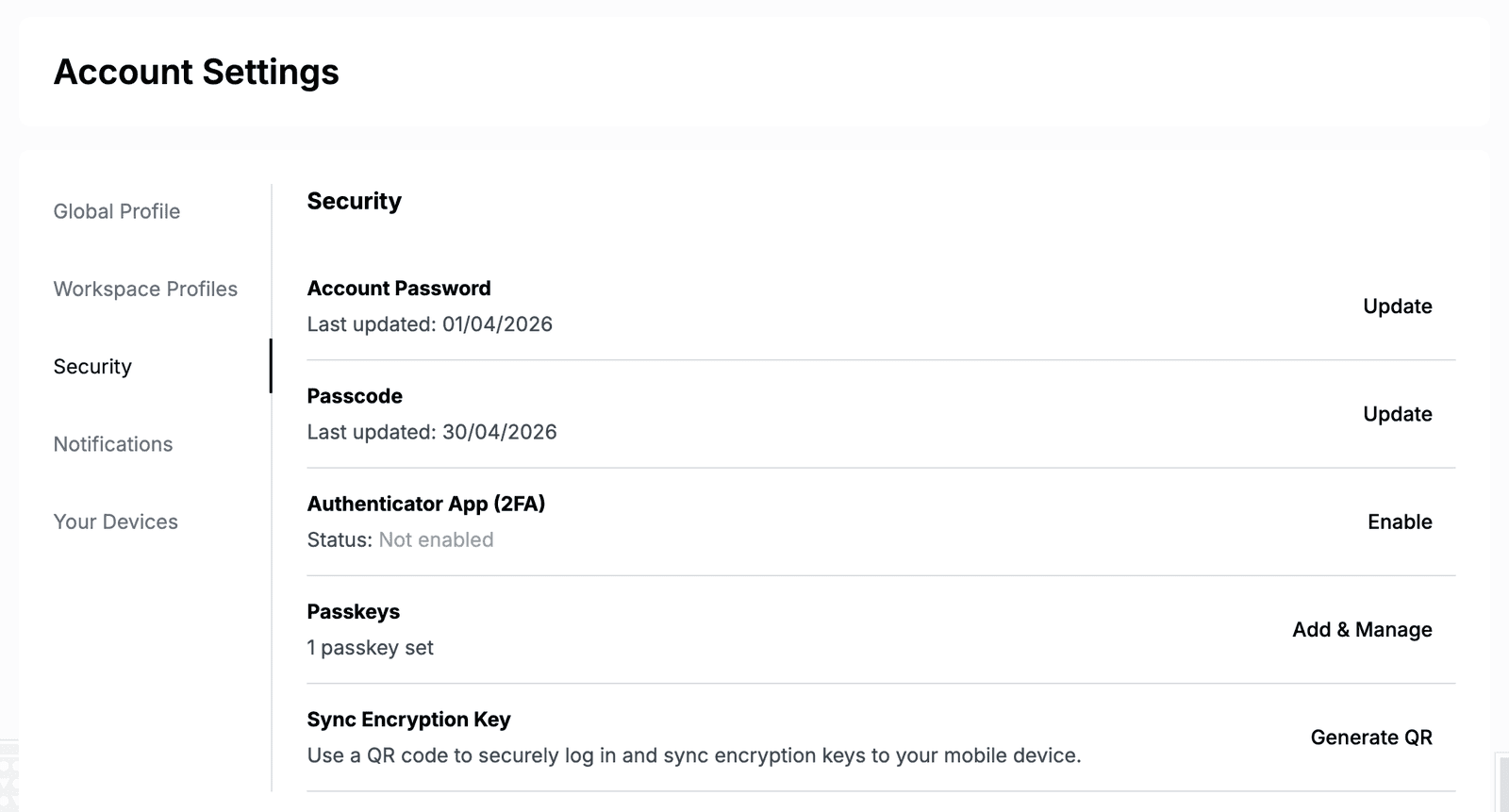
| Setting | What you can do |
|---|---|
| Account Password | Change your password. Shows when you last updated it. |
| Passcode | Change the 6-digit passcode you use to verify your identity. |
| Authenticator App (2FA) | Click Enable to add two-factor authentication with an authenticator app. |
| Passkeys | Add, rename and review the passkeys on your account. |
| Sync Encryption Key | Click Generate QR to sign in on your mobile device and sync your encryption keys to it. |
Change your password
- Next to Account Password, click Update.
- Enter your Current Password, then your New Password twice.
- Click Continue and complete the security verification.
Change your passcode
- Next to Passcode, click Update.
- Enter your Current Passcode, then your New Passcode and Confirm Passcode.
- Click Change passcode.
If you forgot your current passcode, click Use recovery key, Use passkey or Use mobile app under Having trouble with your passcode?.
Add a passkey
- Next to Passkeys, click Add & Manage.
- Click Add Passkey and follow your browser's prompts to confirm with your fingerprint, face or PIN.
The list shows each passkey's Name, Date added and Last used. To give a passkey a clearer name, click the edit icon in its row, enter a name on Rename passkey and click Save.
Set your notification preferences
Go to Account Settings > Notifications.
| Setting | Description |
|---|---|
| Desktop notification | Lets Hplix send push notifications to your desktop, even when it runs in the background. |
| Notify me about | Your default alert level for conversations: Every new message or Only @mention. |
| Reactions to my messages | Notifies you when someone reacts to your messages. |
| Message sound | Plays a sound for a new message or mention. |
| Call ringtone | Plays a ringtone for incoming audio and video calls. |
| Mute all sounds | Silences all audio alerts, including messages and calls. |
Check your devices
Account Settings > Your Devices shows My Work Device: its operating system, installed browsers and security checks such as Firewall Enabled and Disk Encryption, with the date each part was last updated.