Company Assets
Keep a register of company equipment and information assets, who uses them and how sensitive they are.
Company Assets is your register of company equipment and other assets, such as laptops, monitors, test devices and software. Admins use it to record each asset, assign it to people and keep its assignment history. Everyone can see the assets assigned to them.
Before you begin
The steps on this page use an Administrator account. What you can see and change in Company Assets depends on your role.
View all company assets
- Go to Company Assets.
- Click the Company asset tab.
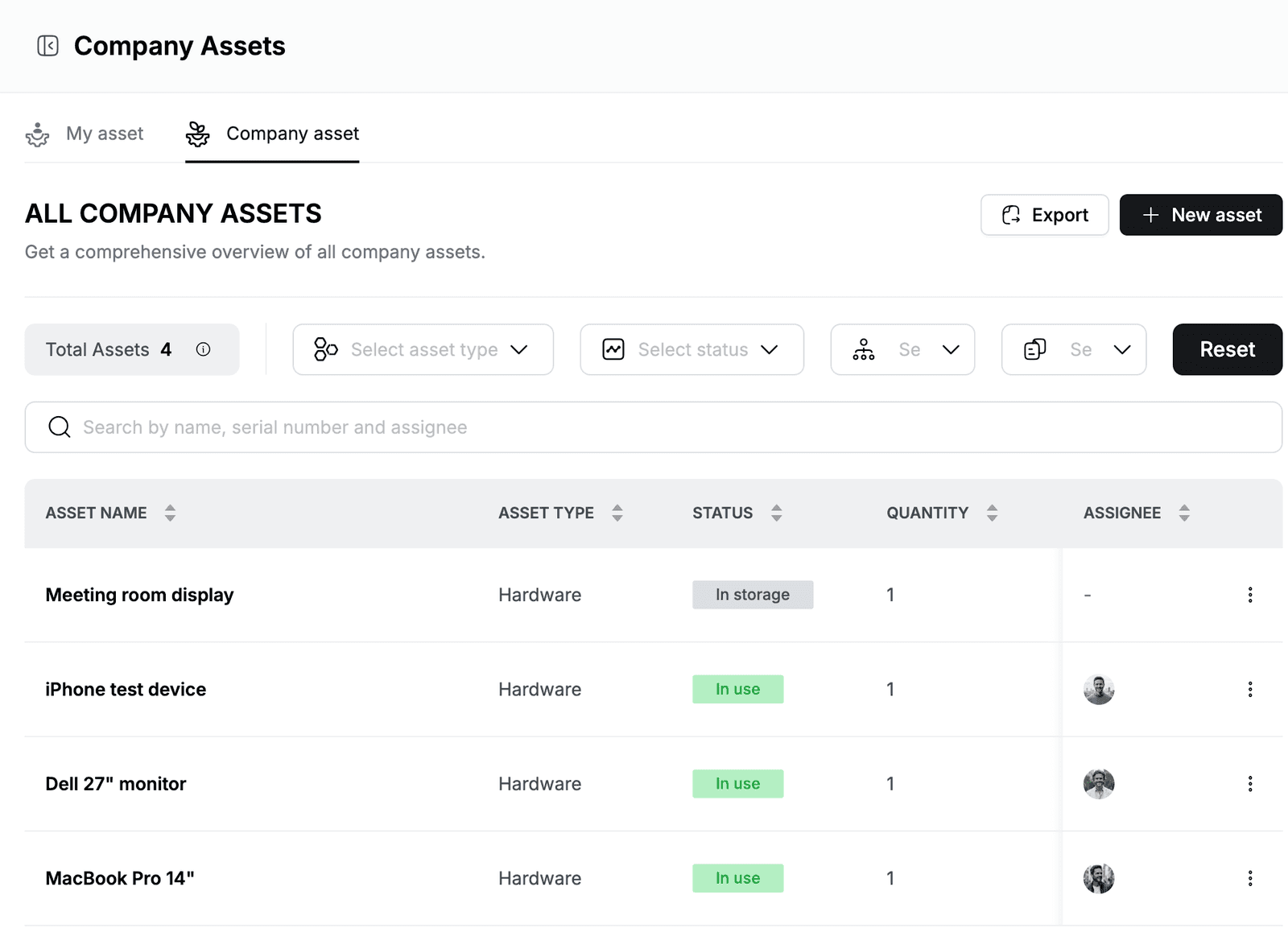
The All company assets list shows each asset's Asset name, Asset type, Status, Quantity, Serial number, Storage & Processors, Department, Project, C + I + A, Information security asset value and Assignee. Total Assets shows how many assets match the current filters.
- To find an asset, type in Search by name, serial number and assignee, for example
NW-DELorRyan. - To narrow the list, use the asset type, status, department and project filters. Click Reset to clear them.
- To sort, click a column heading.
Add an asset
-
Go to Company Assets > Company asset and click New asset.
-
Under Asset information, fill in the details:
Field Description Asset Type Hardware, Software, Information, HR or Zone. Asset Name Required. For example MacBook Pro 14".Serial Number The manufacturer's serial number or your own asset code. Status In use, Damaged or In storage. Storage & Processors Optional hardware details, for example 512 GB SSD, Apple M3 Pro.Quantity Required. How many units this record covers. Confidentiality (C), Integrity (I), Availability (A) Rate each from 1 to 3. Asset Labeling None, Top secret, Secret, Internal use only or Public. Hplix calculates the Information Security Asset Value from the C, I and A ratings, from 1 - Low to 3 - High. The C + I + A column in the list shows the total.
-
Click Continue.
-
Under Asset assignment, select one or more Department(s) and Assignee(s). Optional: select Project(s) and add a Note.
-
Click Add new asset.
If the status is In storage, the assignment step is skipped and you click Add new asset on the first step.
Assign an asset to someone
- Go to Company Assets > Company asset.
- Click ⋮ at the end of the asset's row and click Edit asset.
- Set Status to In use and click Continue.
- Select the Department(s) and Assignee(s), and optionally the Project(s).
- Click Update.
The asset appears in each assignee's My asset tab, and a new row is added to its assignment history.
Unassign an asset
When someone returns an asset, put it back in storage:
- Click ⋮ at the end of the asset's row and click Edit asset.
- Set Status to In storage.
- Click Update.
The asset no longer has an assignee or department, and its assignment history gets an end date.
Edit an asset
- Click ⋮ at the end of the asset's row and click Edit asset.
- Change the details on the Asset information step and click Continue.
- Check the assignment and click Update.
View the assignment history
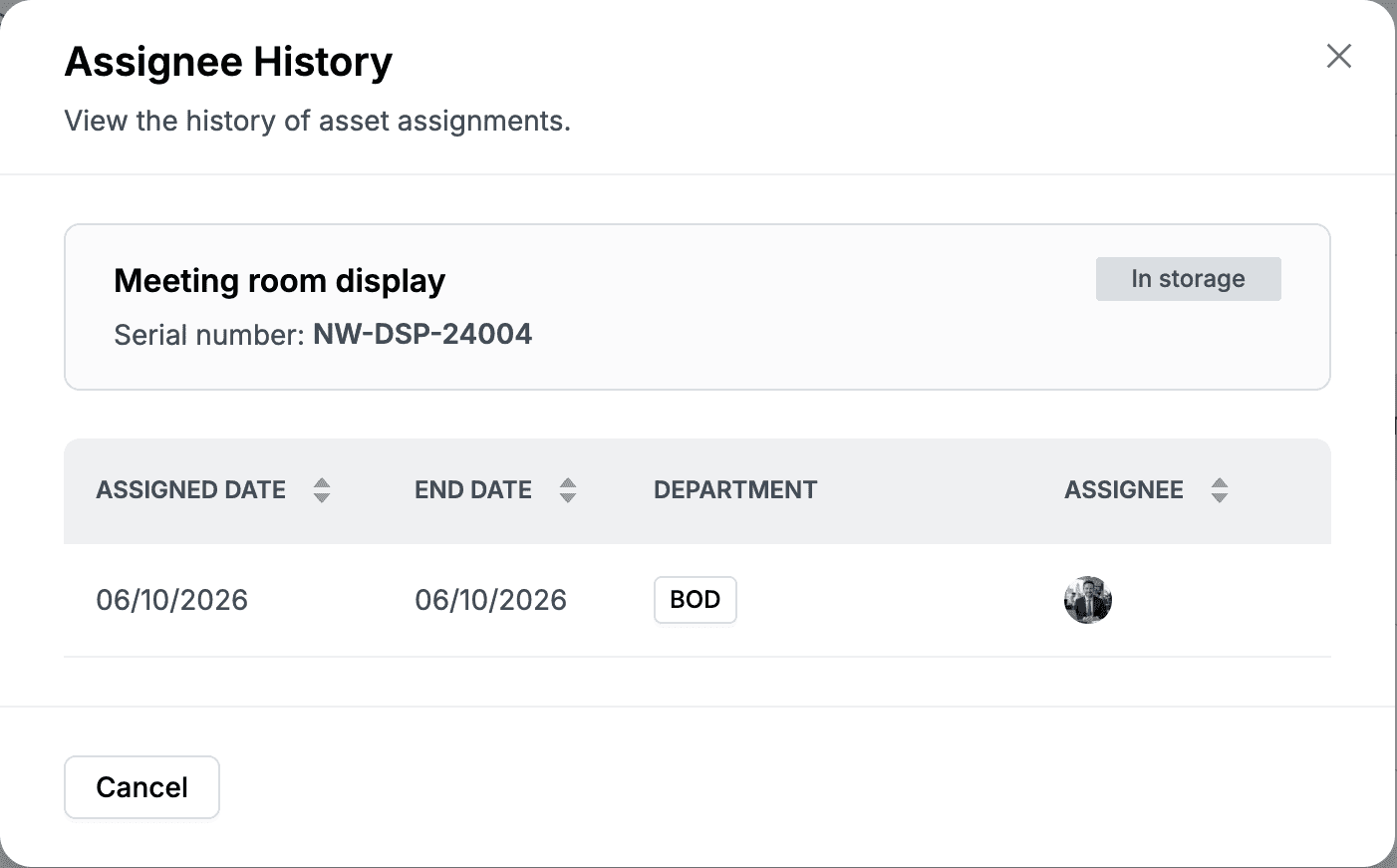
Click ⋮ at the end of the asset's row and click Assignee history. The Assignee History window lists each assignment with its Assigned date, End date, Department and Assignee.
Get an asset's QR code
- Click ⋮ at the end of the asset's row and click QR code.
- The Asset QR Code window shows the asset name, serial number and QR code. Click Download to save it.
Export the asset list
Go to Company Assets > Company asset and click Export. Hplix downloads the list as an Excel file, assets.xlsx.
Delete an asset
Deleting cannot be undone
To keep the record of an asset you no longer use, set its status to In storage or Damaged instead.
- Click ⋮ at the end of the asset's row and click Delete.
- In Delete This Asset, click Delete.
View your assets
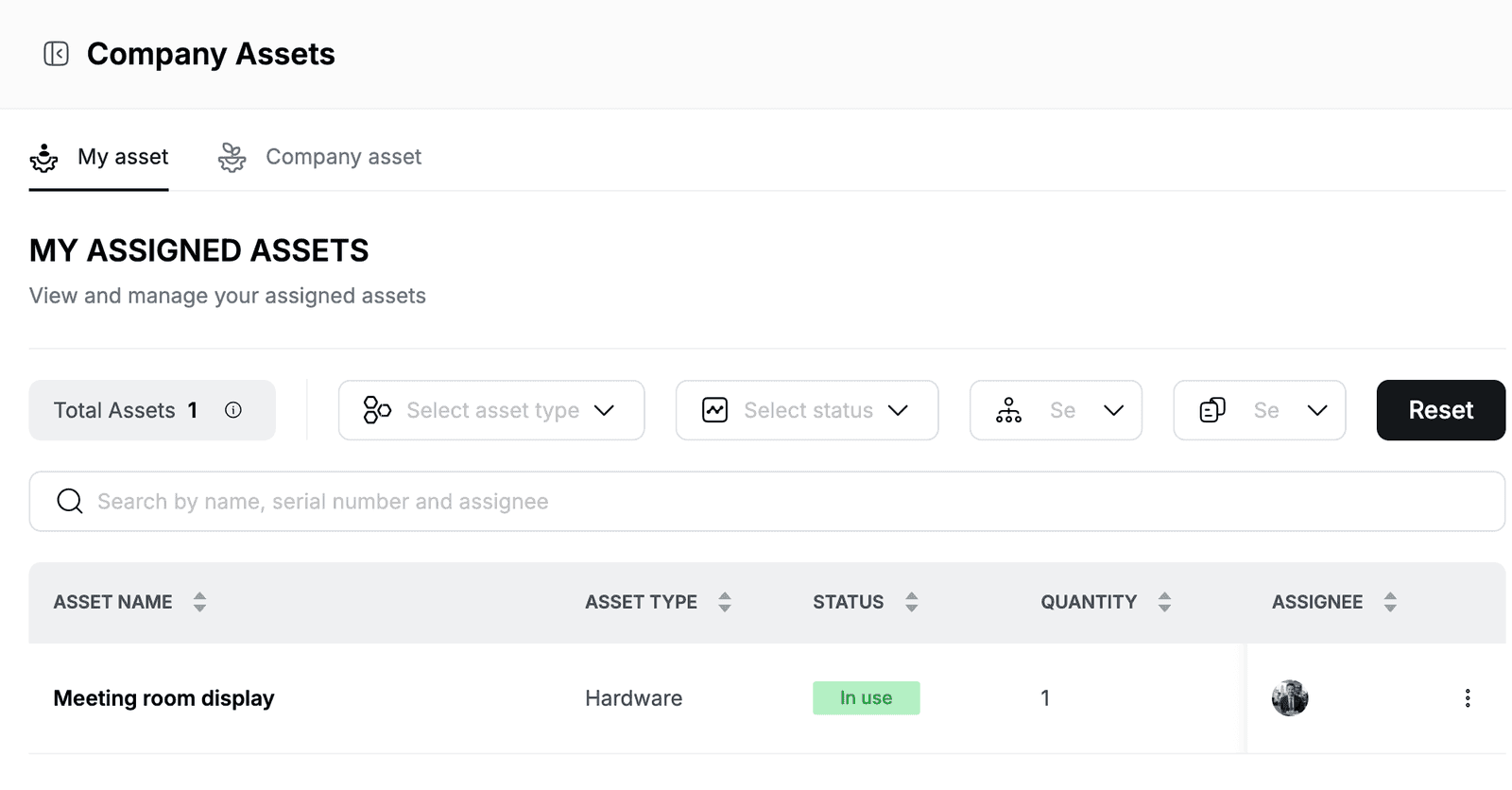
Go to Company Assets. The My asset tab opens first and lists the assets assigned to you, with the date each one was assigned. Use the search box and filters the same way as in the company list.