
Collaboration
Calendar
Plan events, invite people inside and outside your workspace, and track who is coming.
Calendar shows your events and the calendars you follow. Use it to plan meetings, invite guests and see who has replied.
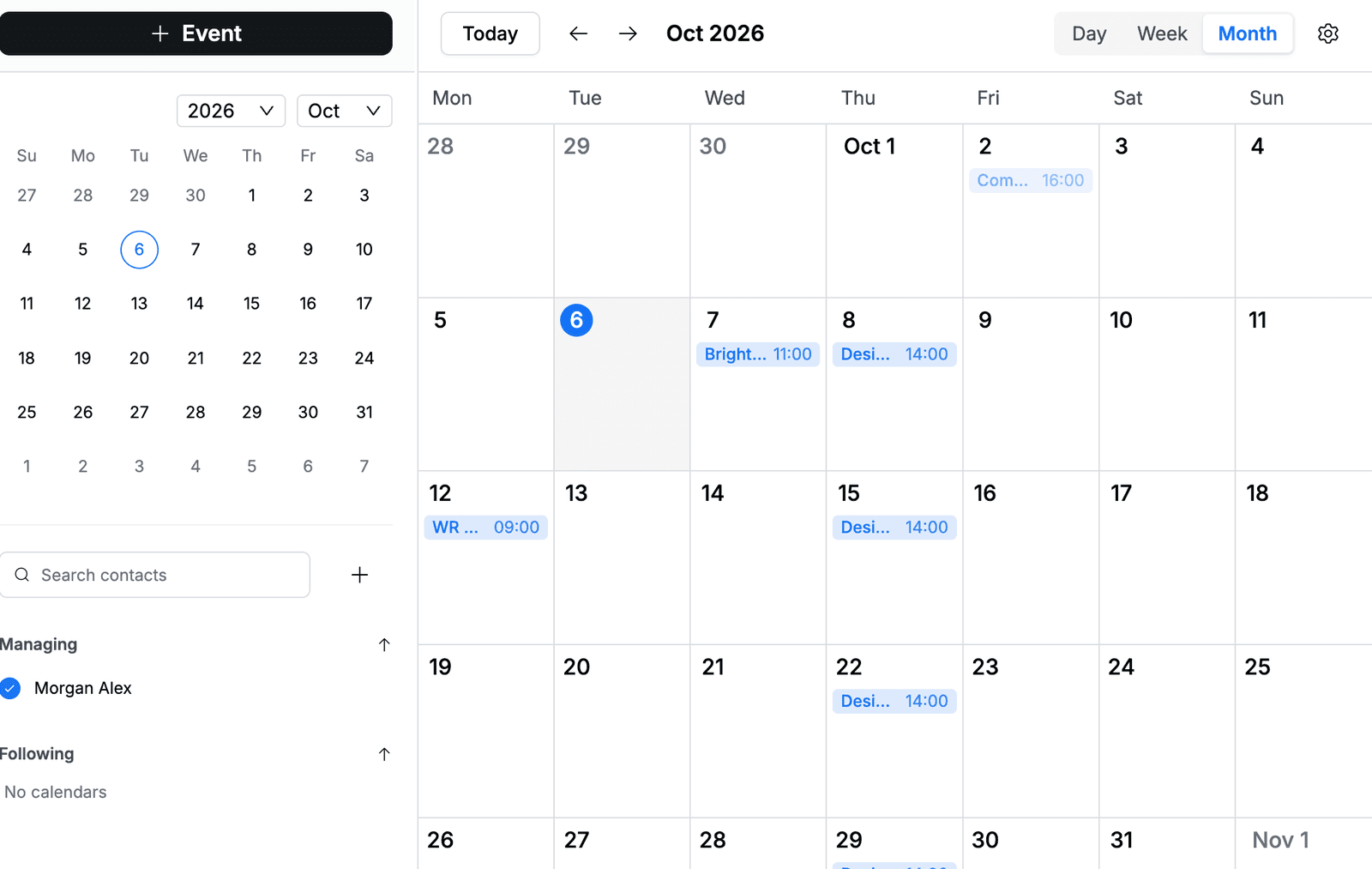
Find your way around
- Switch between Day, Week and Month at the top right. Click Today to go back to the current date, or use the arrows to move forward and back.
- Click a date in the small calendar on the left to jump to it.
- Managing lists the calendars you own. Following lists the calendars you subscribed to.
Create an event
- Go to Calendar and click + Event.
- Enter a title, for example
Design review. - Set the start date and time, then the end time and date.
- Optional: choose how the event repeats, or select All-day.
- Under Event Details, add a location, alerts and a description, and choose the calendar and its color.
- Under Guests, search for people and select them.
- Choose what guests can do: Modify event, Invite others and See guest list.
- Click Save.
While you add guests, their schedules appear next to the form so you can find a time when everyone is free.
| Option | Choices |
|---|---|
| Repeat | No repeats, Daily, Weekly, Monthly, Annually, Every weekday or Custom |
| Alerts | From At time of event to 1 week before. Click Add alerts to add more than one. |
| Visibility | Default visibility, Public or Private |
| Show as | Busy or Free |
Set a custom repeat
- In the repeat list, select Custom.
- Under Repeats every, enter a number and choose day, week, month or year.
- For a monthly event, choose On specific date (the same day each month) or week (for example the 1st Friday).
- Under Ends, choose Never ends or pick an end date.
- Click Confirm.
Invite people outside your workspace
In Guests, type the person's full email address and select Invite under Outside the workspace. They get an invitation by email. The guest permissions apply only to workspace members.
Respond to an event
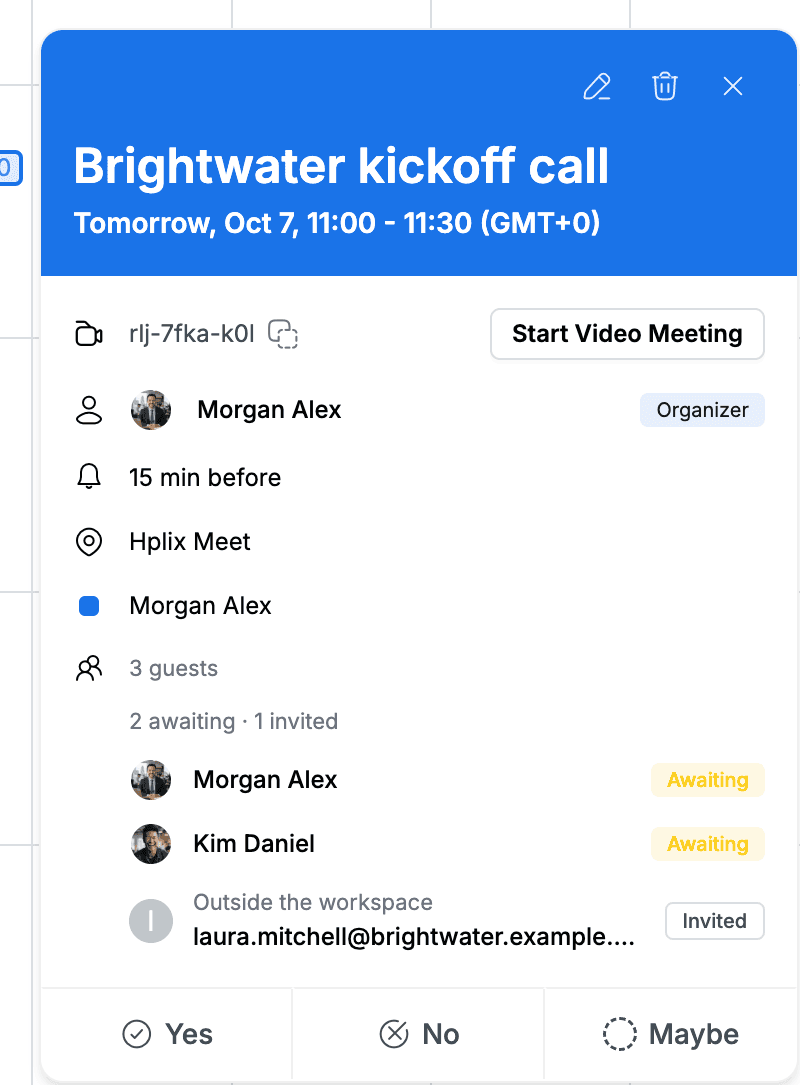
Click an event to open its details. You can see:
- The meeting code, with a copy button, and Start Video Meeting to open the event's video call.
- The organizer, alerts, location and calendar.
- Each guest's response, such as Awaiting or Invited.
To reply, click Yes, No or Maybe at the bottom. To change or delete the event, use the edit and delete icons at the top of the details.
Add or follow calendars
Click + next to Search contacts:
- New Calendar creates another calendar that you manage.
- Subscribe to Calendar lets you follow a calendar from your Contacts or from Public calendars.
Change your calendar settings
Click the gear icon at the top right.
| Section | Settings |
|---|---|
| New events | Default duration, Default reminder and All-day reminder |
| Calendar view | Start week on, Event style, Dim past events and Show declined events |
| Working hours | Set working hours so people are warned before inviting you outside them. Workdays are set by an admin for the workspace. |
| Notifications | Get notified when someone declines your invitation, or about events you declined |