
Ask Pulse
Ask questions about your work and workspace, attach files and get answers from Pulse, the Hplix AI assistant.
Pulse is the AI assistant in Hplix. Ask it about your tasks, projects, approvals, people and files in plain language, and it looks up the answer in your workspace.
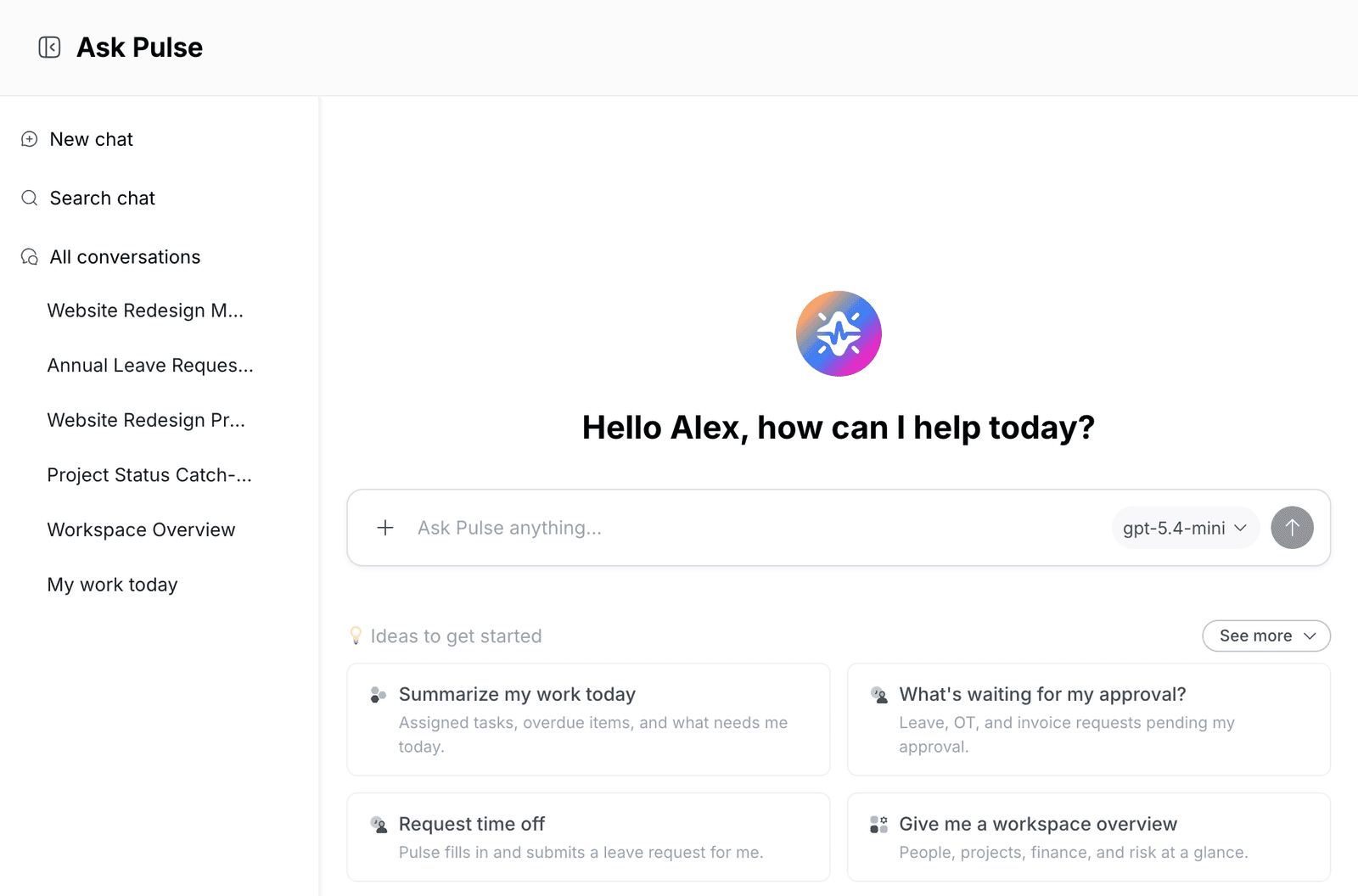
Ask a question
- Go to Ask Pulse.
- Type your question in Ask Pulse anything..., for example
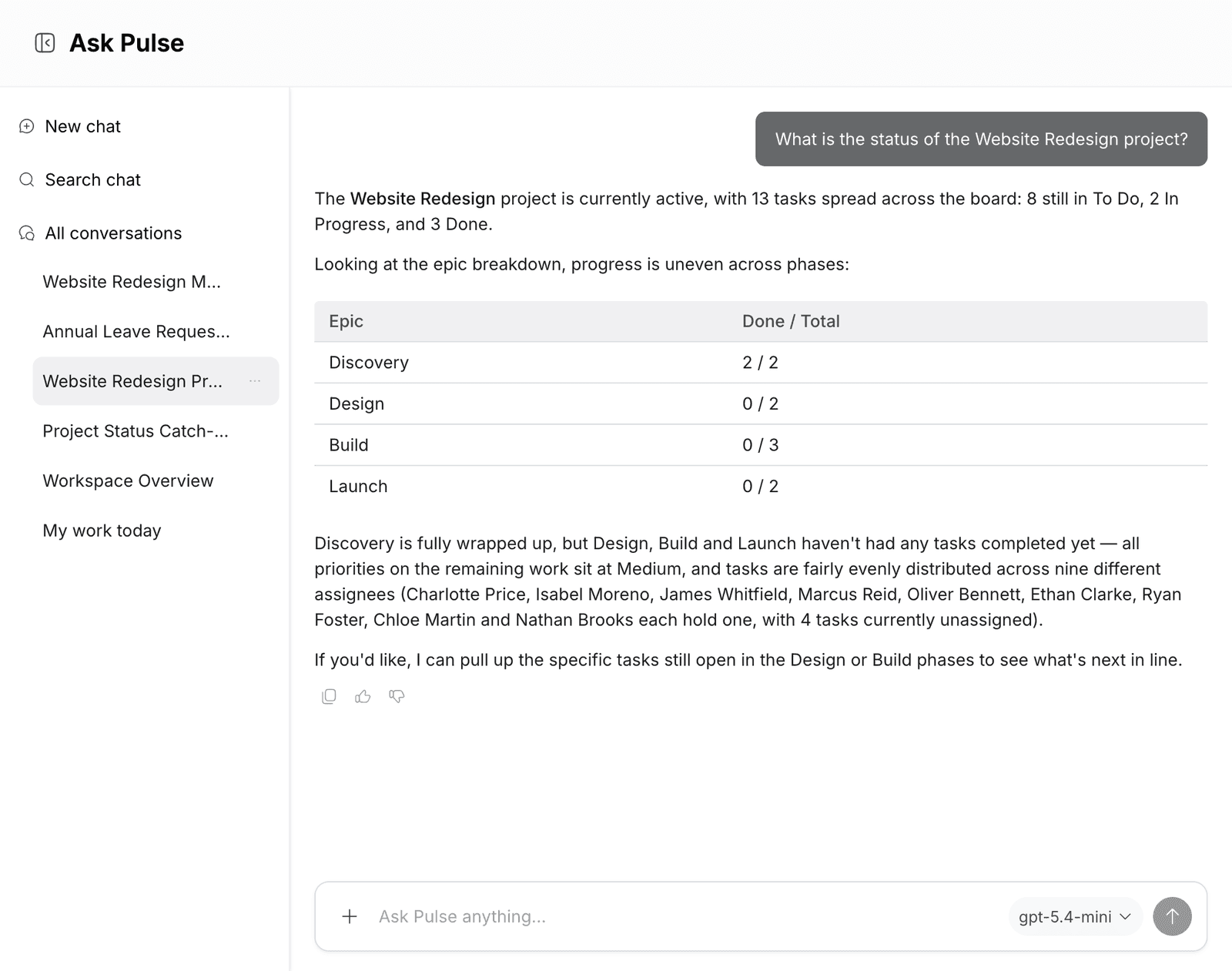
What is the status of the Website Redesign project? - Press Enter or click the send button.
Pulse shows the steps it takes under Chain of Thought, for example Listing your projects, and then writes its answer. Click Chain of Thought to show or hide the steps. To stop an answer while Pulse is still writing it, click the stop button in the prompt box.
Ask follow-up questions in the same conversation. Pulse keeps the earlier messages in mind.
Start from an idea
Under Ideas to get started, click a card to send that question right away. Click See more to see all ideas, grouped by topic:
| Topic | Examples |
|---|---|
| Work & Projects | Summarize my work today, Catch me up on my projects, What recurring tasks are due? |
| Time & Requests | How many leave days do I have left?, Fill my timesheet, What's waiting for my approval? |
| People | Who's out today?, Look up a teammate, Show the department breakdown |
| Chat & Knowledge | What did I miss in chat?, Search the knowledge base, Summarize a document |
| Recruitment | Review my hiring pipeline, Compare top candidates |
| Finance & Operations | Which invoices are overdue?, Show my clients' active projects, Show open high-level risks |
Some ideas ask Pulse to do something for you, such as Request time off, Create a task or Log overtime. See Answer Pulse's questions.
Choose a model
Click the model name in the prompt box, for example gpt-5.4-mini, and select another model. Each model has a short description, such as Fast and cost-efficient or Strong reasoning and writing. Pulse uses the model you pick for your next messages.
Attach files
- In the prompt box, click + (Attach) and select one or more files.
- The file appears above the prompt box. To remove it, click its close button.
- Type your question, for example
Summarize this file., and press Enter.
Pulse reads the file and answers based on its contents.
Answer Pulse's questions
When Pulse needs more details before it can do something for you, it asks in a question card above the prompt box. For example, if you ask Request 1 day of annual leave for me on November 20, 2026., Pulse asks who should approve the request and what the reason is.
- Read the question. Question 1 of 2 shows how many questions there are.
- Type your answer under Write an answer.
- Click Continue to go to the next question. Use the arrows to go back and forth, or click Close (×) to close the card.
After the last question, Pulse sends your answers in the conversation and tells you what it is going to submit.
Copy or rate an answer
Under each answer:
- Click the copy icon to copy the answer.
- Click the thumbs-up (Like) or thumbs-down (Dislike) icon to rate the answer.
Manage conversations
Every question you ask starts or continues a conversation. Pulse names each conversation after its topic, for example Website Redesign Project Status, and lists it under All conversations, newest first.
- To start over with an empty conversation, click New chat.
- To open an earlier conversation, click it under All conversations.
- To find a conversation by its name, click Search chat and type in Search in all chats....
Rename or delete a conversation
- Under All conversations, click More actions next to the conversation.
- Do one of the following:
- Click Rename, type the new name, for example
My work today, and press Enter. - Click Delete, then click Delete again in the Delete chat dialog.
- Click Rename, type the new name, for example
Deleting a chat
A deleted conversation cannot be restored.
Open Pulse from any page
You do not have to leave the page you are working on. Click the Pulse button in the bottom-right corner of any page to open the Pulse panel. It has the same prompt box, ideas and conversations as the Ask Pulse page.
In the panel header:
- New chat starts a new conversation.
- Recent chats opens All chats, with your conversations and a search box.
- Switch layout shows the panel as a Sidebar, Floating window or Fullscreen.
- Close hides the panel.