
Recurring Tasks
Schedule work that repeats, such as payroll reviews or backup checks, and track each occurrence as a child task.
Recurring Tasks keeps track of work that repeats on a fixed cycle, such as a monthly payroll review or a weekly backup check. Admins set up each recurring task in Task Management. Each occurrence is a child task that the assignee works on in My Tasks.
Before you begin
The steps on this page use an Administrator account. What you can see and change in Recurring Tasks depends on your role.
Create a recurring task
- Go to Recurring Tasks > Task Management.
- Click New Recurring Task.
- Enter a Name, for example
Weekly backup check. - Under Cycle, select Daily, Weekly, Monthly, Quarterly or Yearly.
- Pick a Start Date. Optional: pick a Deadline.
- Under Assignees, select one or more people.
- Optional: add a Description with the instructions for each occurrence.
- Click Add.
The recurring task appears as a card in Task Management.
When child tasks are created
Next Scheduled Date shows when Hplix creates the next child task. It is one cycle after the start date:
| Cycle | Start Date | Next Scheduled Date |
|---|---|---|
| Weekly | October 5, 2026 | October 12, 2026 |
| Monthly | October 1, 2026 | November 1, 2026 |
| Quarterly | October 1, 2026 | January 1, 2027 |
Creating a recurring task does not create a child task for the current cycle. To track the current cycle, add a child task manually.
Find a recurring task
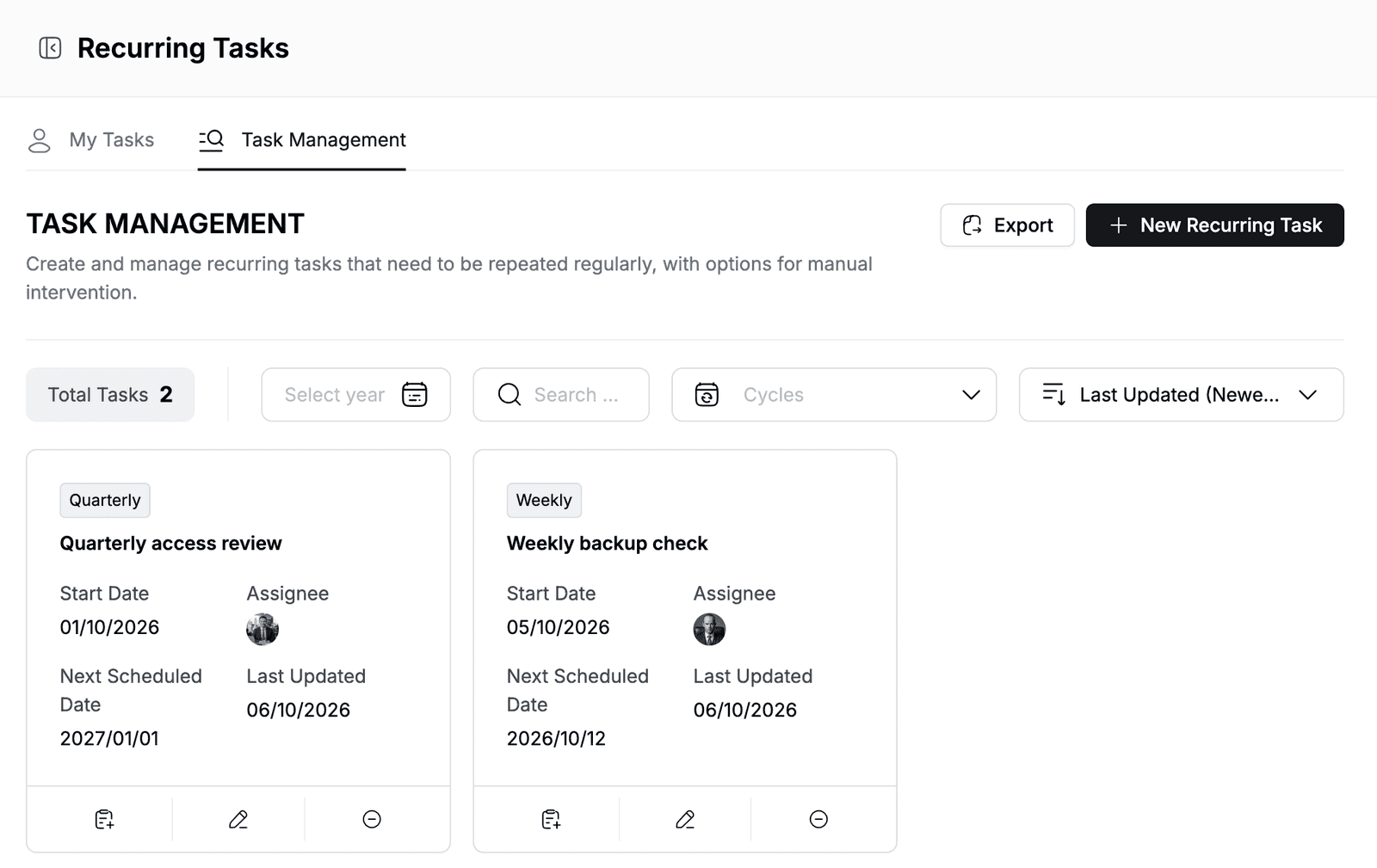
In Task Management, each card shows the cycle, Start Date, Assignee, Next Scheduled Date and Last Updated. Total Tasks shows how many recurring tasks match the current filters.
- To filter by year, use Select year.
- To find a task, type in Search by task name.
- To show one cycle only, use Cycles.
- To change the order, choose Last Updated (Newest), Last Updated (Oldest), Date Created (Newest) or Date Created (Oldest).
View a recurring task and its child tasks
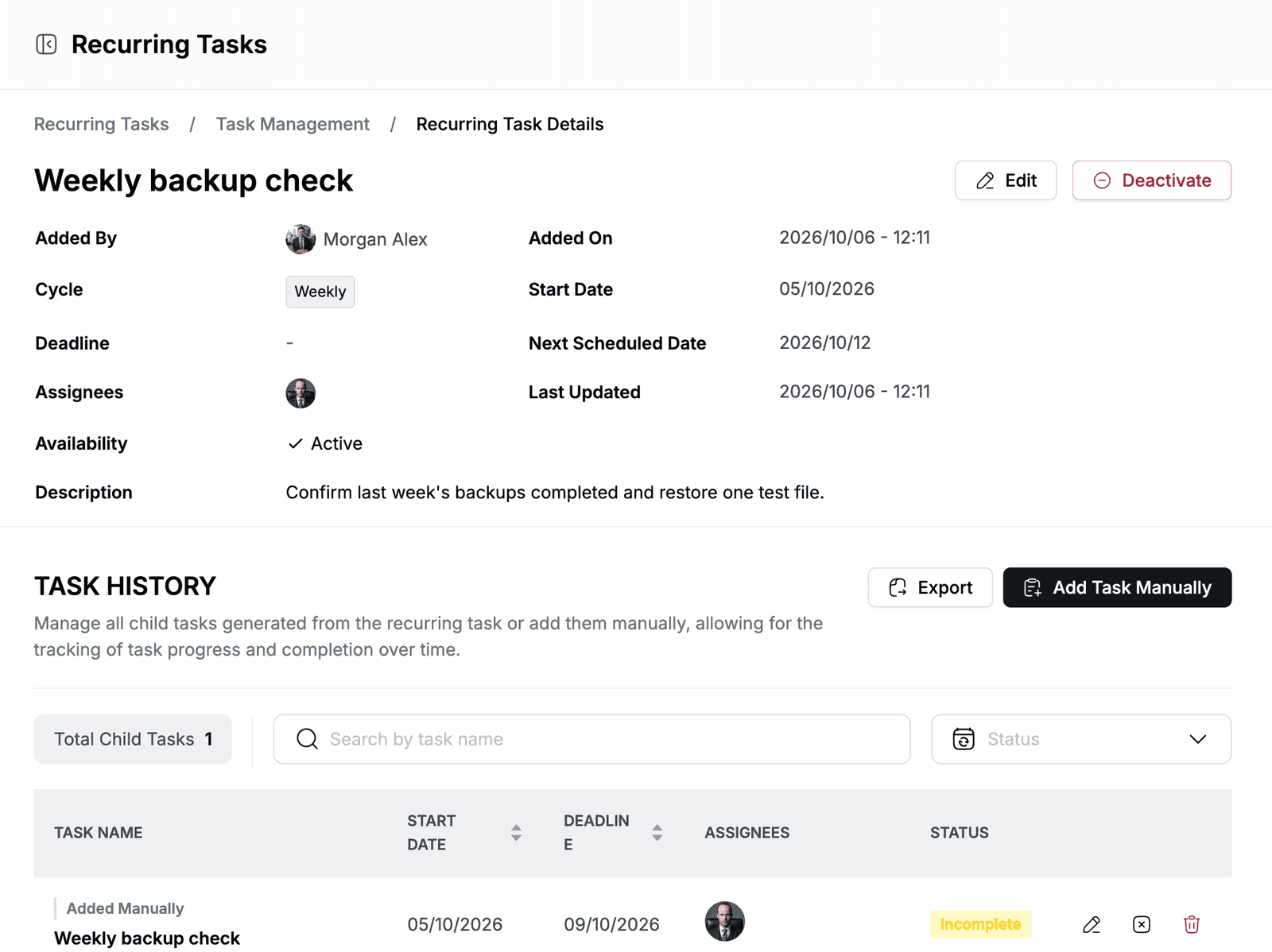
Double-click a card in Task Management. Recurring Task Details shows who added the task, the cycle, dates, assignees, Availability (Active or Inactive) and the description.
Task History lists every child task with its Task name, Start date, Deadline, Assignees and Status. Child tasks you added yourself are labeled Added Manually. Use Search by task name and Status to filter the list.
Add a child task manually
Add a child task when work is needed outside the schedule, or for the current cycle.
- In Task Management, click the first icon on the card. Or, on Recurring Task Details, click Add Task Manually.
- Check the Name, Start Date, Deadline, Assignees and Description. They are filled in from the recurring task and the current cycle.
- Click Add.
The child task appears in Task History and in the assignee's My Tasks.
Change or cancel a child task
On Recurring Task Details, use the icons at the end of a row in Task History:
- Click the pencil icon to open Edit Child Task. Change the name, dates, assignees, description or Status, then click Save. The statuses are Incomplete, Completed, Overdue and Cancelled.
- Click the cancel icon, then Cancel task, to cancel the child task.
- Click the delete icon, then Delete, to remove the child task.
Deleting a child task cannot be undone.
Work on your tasks
My Tasks lists the child tasks assigned to you, with their status, Start Date and Deadline. Filter them with Select month, the search box and Status.
- Go to Recurring Tasks > My Tasks.
- Double-click a task to open it.
- To record progress, click the pencil icon next to Note, enter your note, for example
Password Vault reviewed. Client projects next., and click Save. - When the work is done, click Mark As Completed.
To reopen a completed task, open it and click Mark As Incomplete.
Edit a recurring task
- In Task Management, click the pencil icon on the card. Or, on Recurring Task Details, click Edit.
- Change the name, cycle, dates, assignees or description.
- Click Save.
Pause or resume a recurring task
To stop a recurring task from creating child tasks:
- On Recurring Task Details, click Deactivate. You can also click the last icon on the card in Task Management.
- Click Deactivate to confirm.
Availability changes to Inactive. To resume the schedule, click Activate and confirm.
While a recurring task is inactive, you can also click Delete to remove it.
Deleting a recurring task cannot be undone.
Export recurring tasks
- To export all recurring tasks, go to Task Management and click Export.
- To export the child tasks of one recurring task, open its Recurring Task Details and click Export in Task History.
Hplix downloads an Excel (.xlsx) file.