CollaborationPlanix
Planix
Plan, track and deliver project work with backlogs, sprints, boards and timelines.
Planix is where your team plans and tracks project work. Each project has its own backlog, sprints, board and timeline, and every task, story or bug is a work item with its own key, such as WR-3.
Before you begin
Only members of a project can be assigned its work items. Project members are managed from the project's Access settings. See Add project members.
Open a project
- Go to Planix. The list shows each project's Name, Key and Lead.
- To see projects that are no longer active, change the status filter from Active to Inactive.
- Click a project name. The project opens on the Backlog view.
To open a project's settings from the list, click ⋮ in the Action column, then click Project Setting.
Switch between views
Use the tabs under the project name to switch views. All views show the same work items.
| View | What it shows |
|---|---|
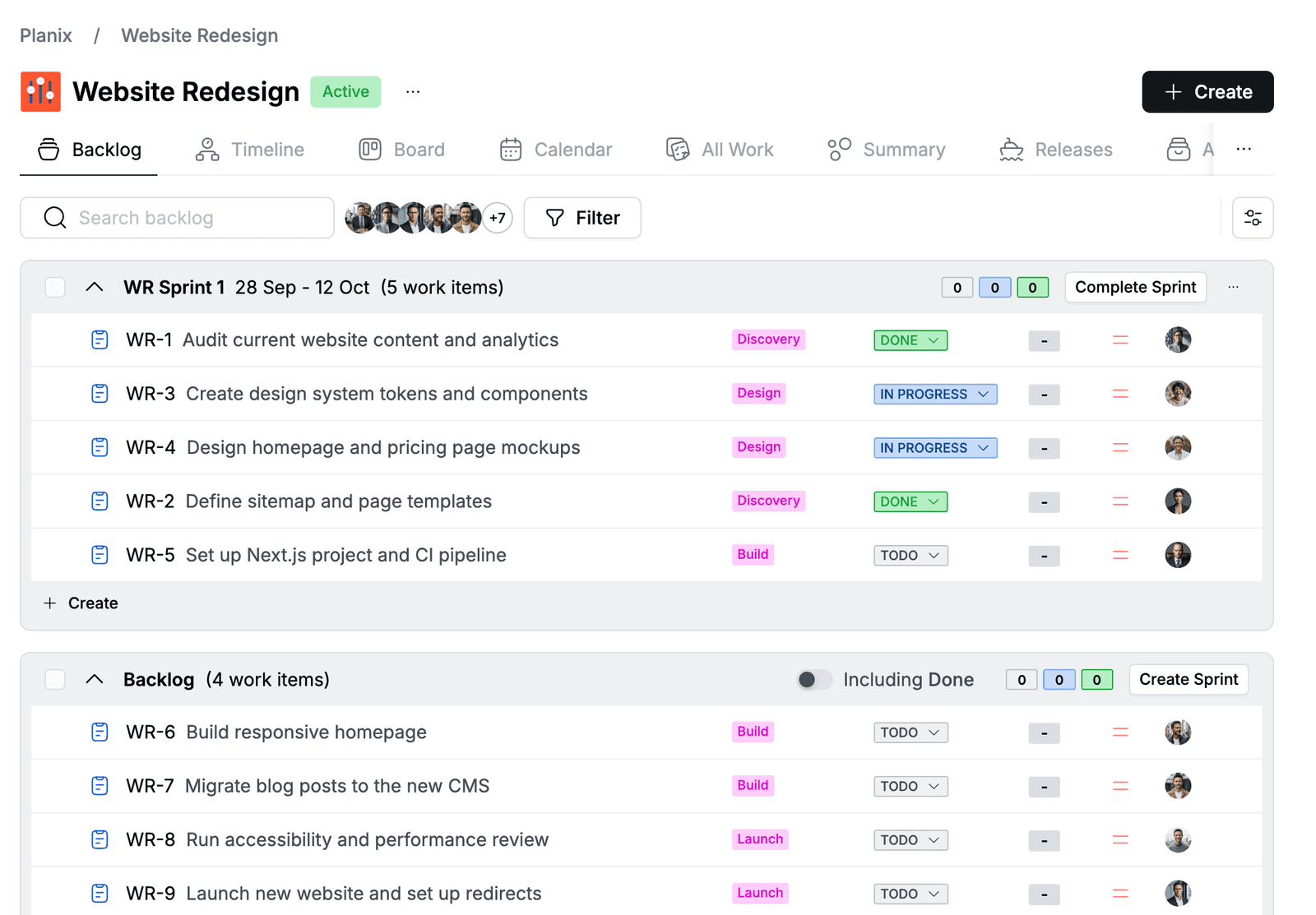
| Backlog | Sprints and the backlog in one list. Use it to plan what the team works on next. |
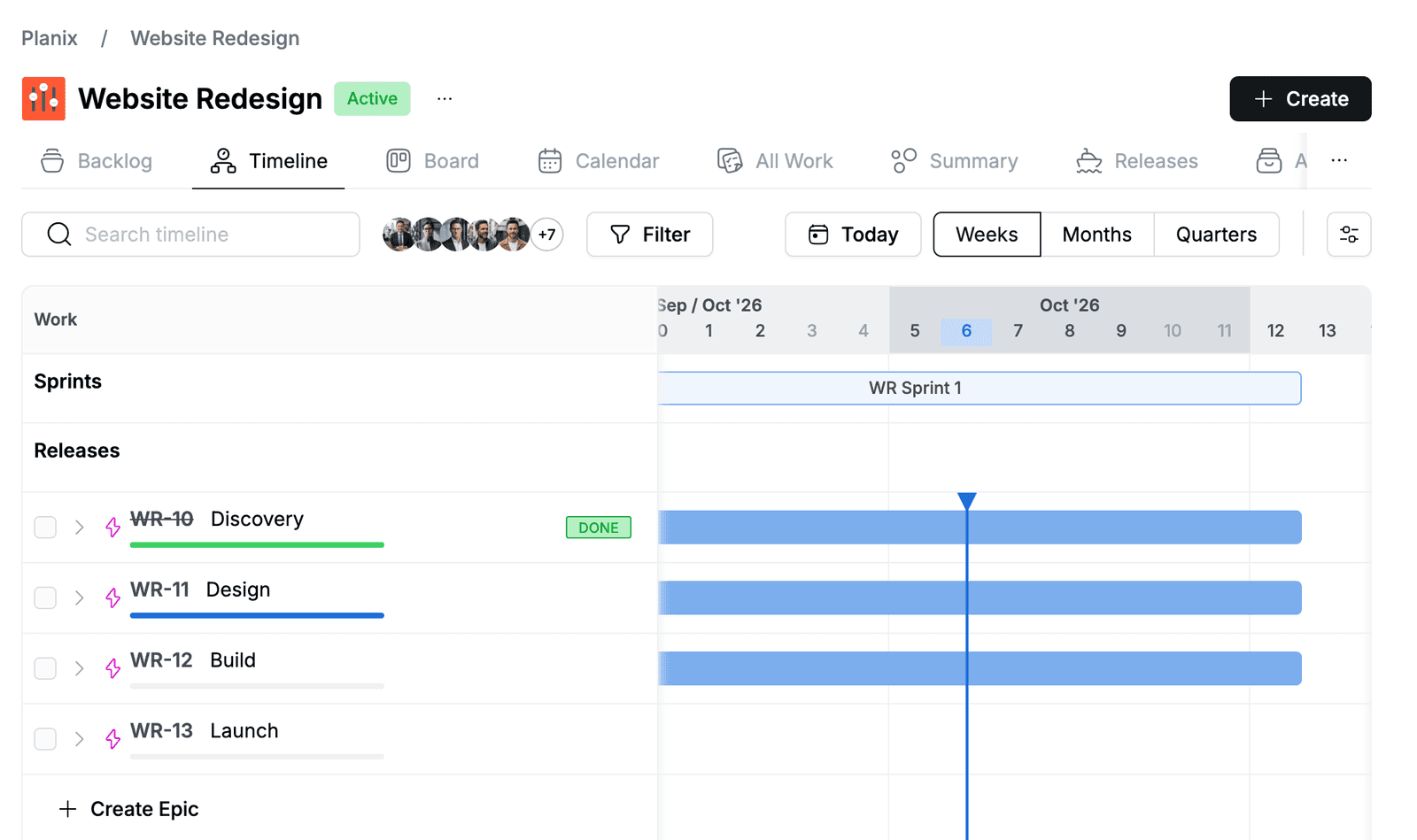
| Timeline | Epics on a time scale, with rows for Sprints and Releases. Zoom with Weeks, Months or Quarters. |
| Board | Work items in the active sprint, in one column per status. |
| Calendar | Work items by due date, by Week or Month. Drag an item from Unscheduled work onto a day to set its due date. |
| All Work | A table of every work item with assignee, reporter, priority, status, parent, sprint and dates. Save filters with Saved Filters. |
| Summary | Work completed, updated, created and due soon in the last 7 days, a status overview, recent activity, a priority breakdown and types of work. |
| Releases | Versions with their status, progress and dates. Click Create Version to add one. |
| Archived work items | Work items that were archived from the project. You can restore them from here. |