
Presentation
Create slide decks from a blank file or a template, add slides and text, and present them full screen.
Presentation lists the slide decks in your storage and opens them in the presentation editor. Use it for kickoff decks, updates and other slides you present to your team.
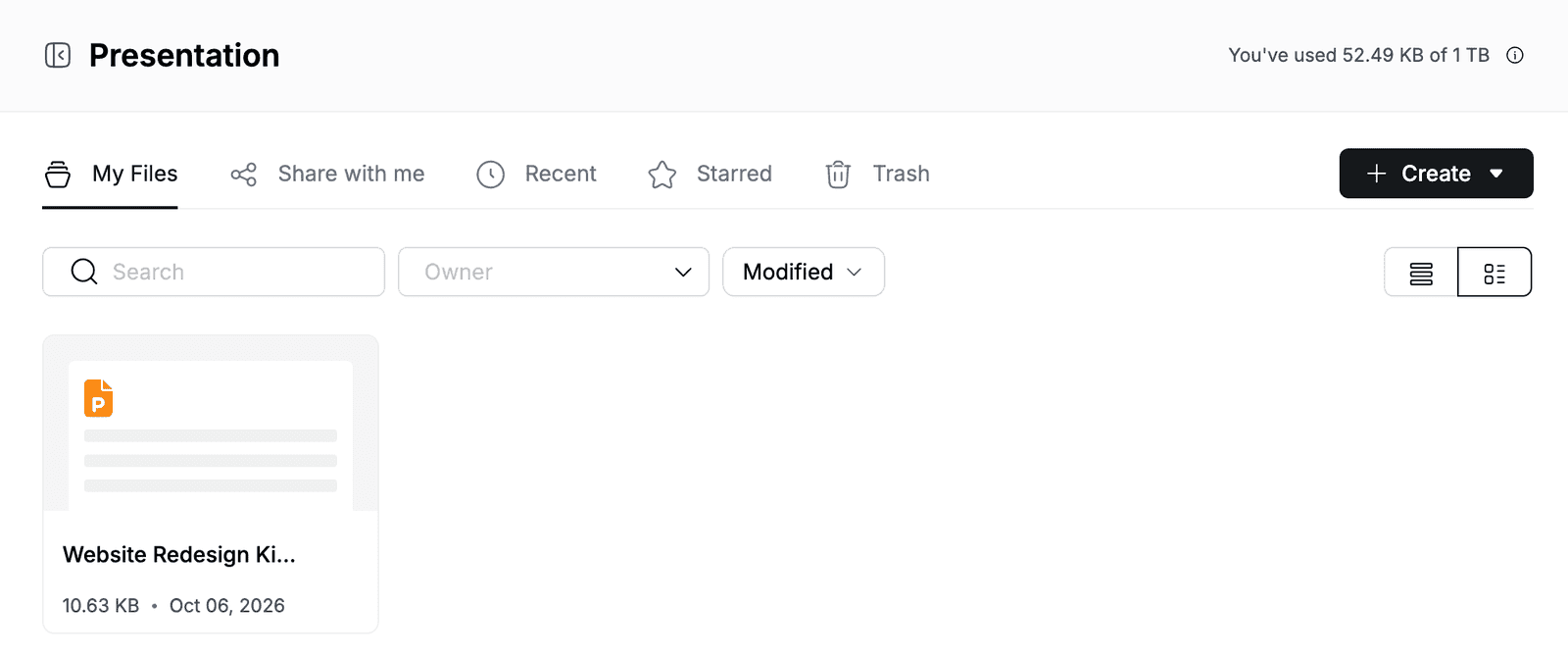
Find your way around
- My Files lists the presentations and folders you own. Share with me, Recent, Starred and Trash work the same way as in My Storage.
- Use Search, the Owner filter and the Modified sort to find a file. Switch between list and grid view with the icons on the right.
- The storage you have used is shown at the top right.
Create a presentation
- Go to Presentation.
- Click Create > Create Presentation.
- In Create File, select Blank, or pick a template, for example Pitch Deck under Business & Strategy.
The presentation opens in a new browser tab with the name new-presentation. To rename it, click the name at the top left, type a new name, for example Website Redesign Kickoff, and press Enter.
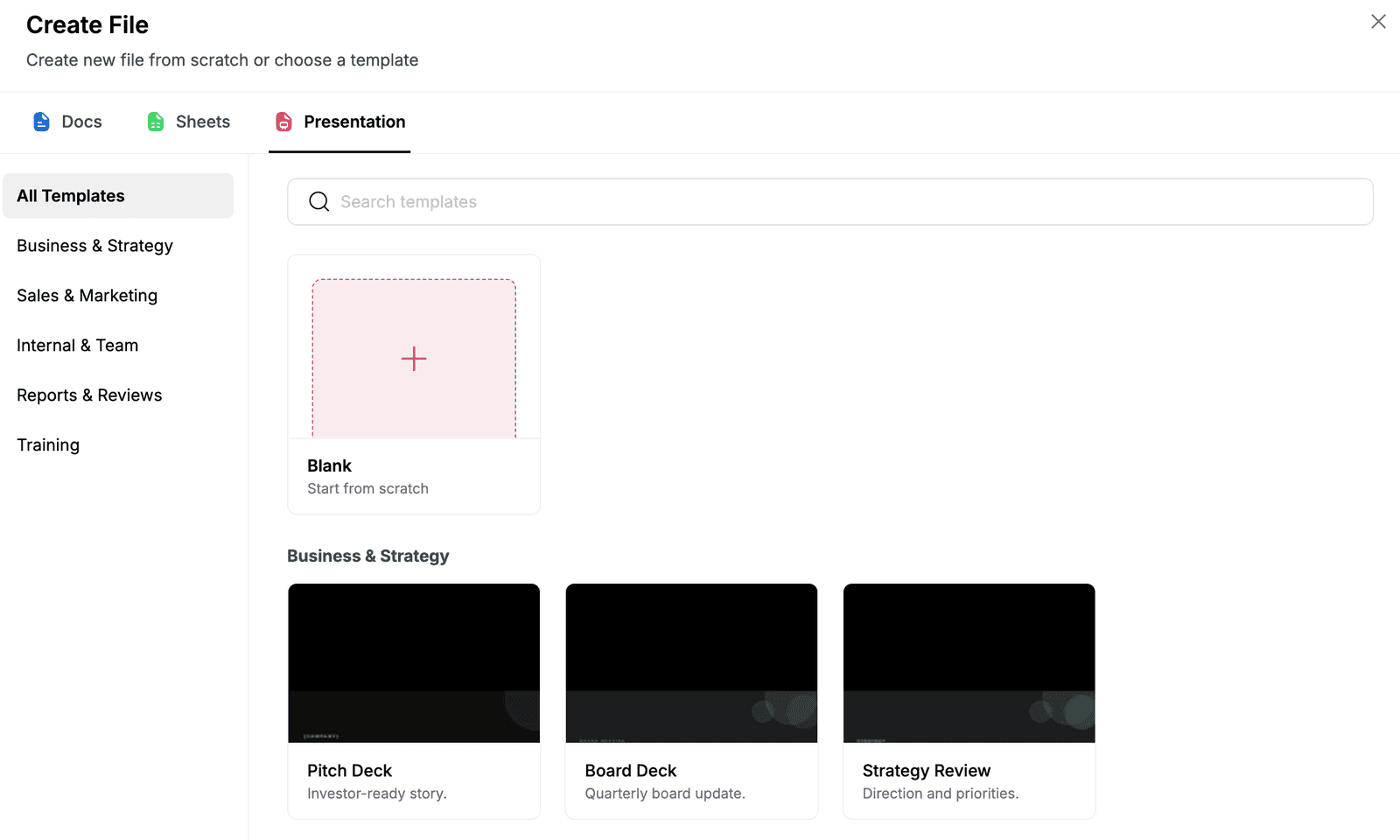
| Category | Templates |
|---|---|
| Business & Strategy | Pitch Deck, Board Deck, Strategy Review |
| Sales & Marketing | Sales Proposal, Product Demo, Campaign Plan |
| Internal & Team | All-Hands, Team Update, Onboarding Deck |
| Reports & Reviews | Quarterly Business Review, Project Status, Monthly Report |
| Training | Workshop, Playbook, Course Deck |
To add an existing file instead, click Create > File upload. Create > New Folder adds a folder.
Add and remove slides
The slides are listed on the left of the editor. Click a slide to edit it.
- To add a slide, click + on the toolbar or Slide > New slide.
- To remove the current slide, click Slide > Delete slide.
Add text to a slide
- On the toolbar, click the Text box icon.
- Click the slide. A text box with
Click to edit textappears. - Double-click the text box, select the placeholder text and type your text, for example
Project goals. - Click outside the text box to finish.
To move a text box, drag it. To make it wider, select it and drag the handle on its right edge. To remove it, select it and press Delete.
When a text box is selected, the toolbar shows the text options: font, size, Bold, Italic, Underline, text color and alignment.
Present a presentation
- Click Slideshow at the top right of the editor.
- Move between slides with the arrow keys or the arrows at the bottom left. The counter shows the current slide, for example 1 / 5.
- Click × at the bottom left to return to the editor.
Manage presentations in the list
Right-click a presentation, or click … next to its name, to:
- Open, Rename or Make a copy of it.
- Download it.
- Share it or Move it to a folder. Sharing works as described in Share a folder or file.
- Add to starred so it appears under Starred.
- See File details, such as who has access, size and owner.
- Remove it. The file moves to Trash, where you can restore it.