
My Storage
Store, organize and share your files and folders, and create docs, sheets and presentations.
My Storage is your personal file space in Hplix. Keep files in folders, create docs, sheets and presentations, and share them with colleagues.
Find your way around
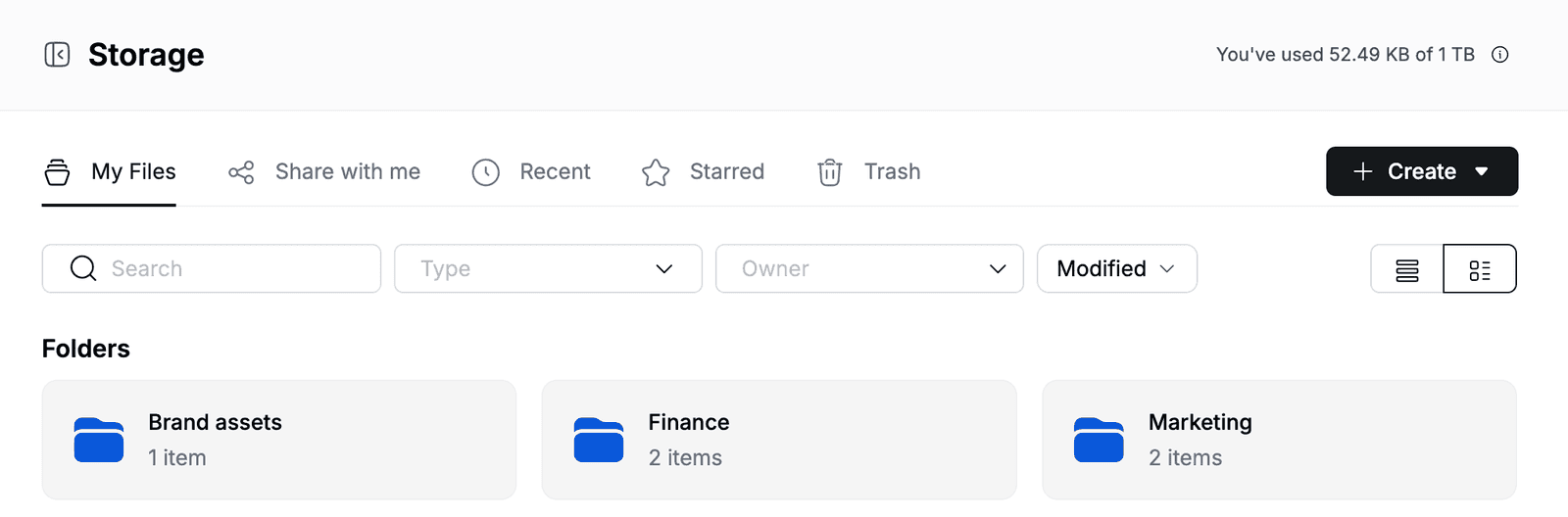
Go to My Storage. The page has five tabs:
| Tab | Shows |
|---|---|
| My Files | Folders and files you own. Folders are listed first, then All Files. |
| Share with me | Folders and files that colleagues have shared with you. |
| Recent | Files you opened or changed recently, grouped by date. |
| Starred | Folders and files you added to starred. |
| Trash | Folders and files you removed. |
To open a folder, click its name. To go back up, click My Files in the path above the folder name.
To switch between grid and list view, click the icons on the right above the files. The list view shows the Name, Date modified, Owner and File size of each item.
Create a folder
- Go to My Storage.
- Click Create > New Folder.
- Enter a folder name, for example
Marketing, and click Create.
To create a folder inside another folder, open that folder first.
Create a doc, sheet or presentation
- Open the folder where you want the file, for example Marketing.
- Click Create, then click Create Doc, Create Sheet or Create Presentation.
- In Create File, click Blank, or pick a template. Use the Docs, Sheets and Presentation tabs to switch file type.
The new file opens in a new browser tab with a default name, such as new-document. To give it a proper name, rename it in My Storage.
To learn how to write and edit, see Document, Spreadsheet and Presentation.
Upload files
- Open the folder where you want the files.
- Click Create > File upload to choose a file, or Create > Folder upload to choose a whole folder.
You can upload images, PDFs, Office files (Word, Excel, PowerPoint), text and CSV files, ZIP archives, audio and video.
Find a file
- Type in Search to find files and folders by name. Search also finds files inside folders.
- Filter by Type, such as Folders, Documents, Spreadsheets, PDFs, Archives or Photos & Images.
- Filter by Owner.
- Use Modified to show items changed Today, in the Last 7 days, the Last 30 days, this year, last year or in a Custom date range.
Click Reset to clear the search and filters.
Manage files and folders
Right-click a file or folder, or click ... next to its name, to open its menu. For files, the menu includes:
- Open and Download.
- Rename and Make a copy.
- Share and Move.
- Add to starred or Remove from starred.
- File details: who has access, a Description you can add, the type, size, owner and dates.
- Remove.
Folders have the same menu without Download and Make a copy, and show Folder details instead.
Rename a file or folder
- Right-click the item and click Rename.
- Enter the new name, for example
Social media calendar, and click Save.
The file keeps its extension, such as .docx.
Star a file or folder
Right-click the item and click Add to starred. Starred items appear on the Starred tab. To remove the star, click Remove from starred.
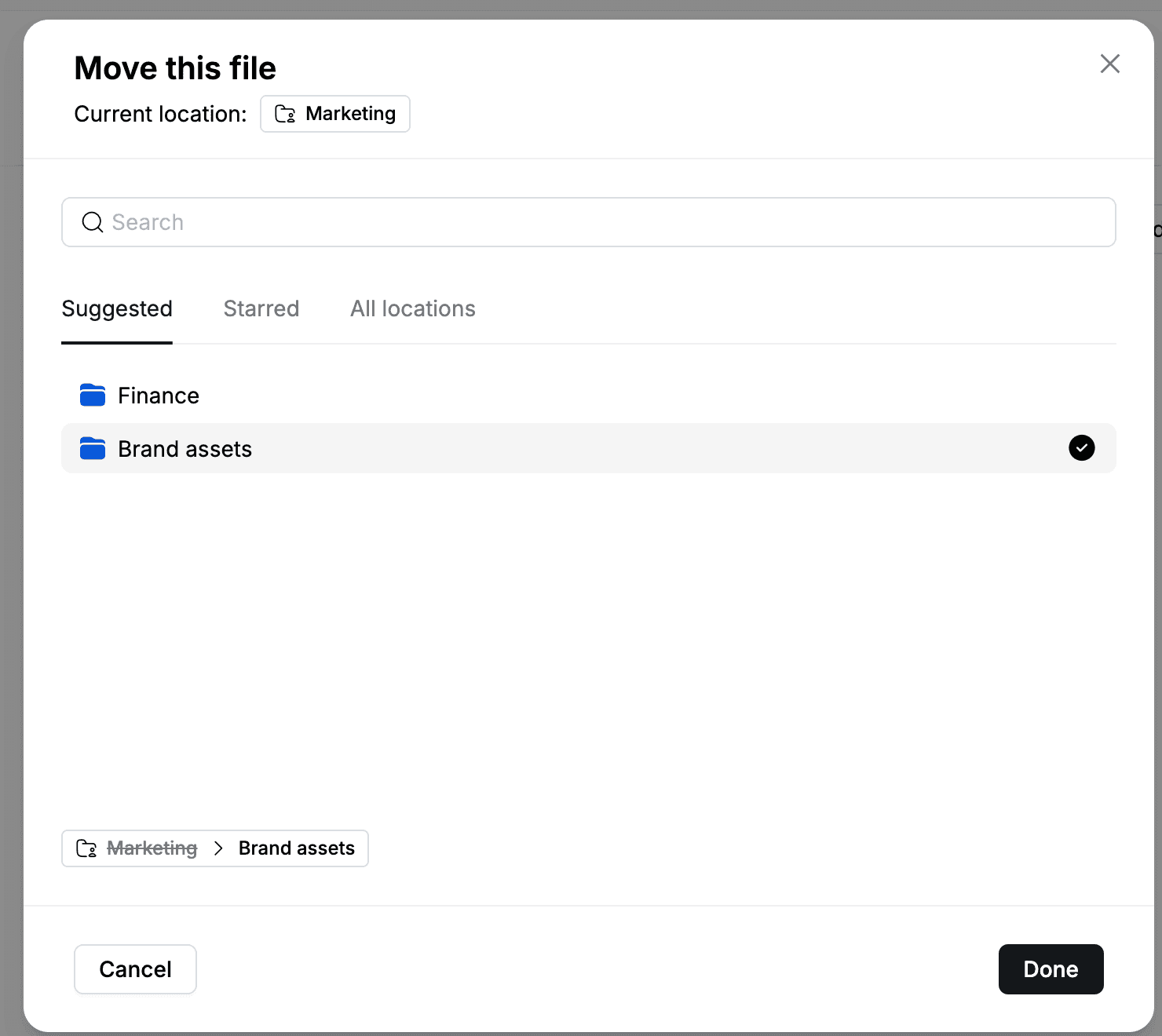
Move a file or folder
- Right-click the item and click Move.
- Select the destination folder. Use Suggested, Starred or All locations to browse, or search by name.
- Click Done.
Share a folder or file
- Right-click the folder or file and click Share > Share.
- Under Invite team members, search for a colleague by name or email and select them.
- Choose their access: Full access, Can edit or Can view.
- Click Add, then click Done.
To change someone's access later, open Share again and change the access next to their name.
Under Share with space members, choose who else can open the item:
- Only people invited: only the people listed in the dialog.
- Everyone at your workspace name: all members of the workspace.
- Everyone has this link: anyone with the link.
To copy the link, click Copy link in the dialog, or right-click the item and click Share > Copy link.
Remove and restore files
To remove an item, right-click it and click Remove. The item moves to the Trash tab.
To restore it, go to Trash, right-click the item and click Restore. It goes back to the folder it was removed from.
Trash is emptied after 30 days
Items in Trash are deleted permanently after 30 days. Delete permanently and Permanently delete all delete items right away and cannot be undone.
Check your storage
The space you use shows at the top right, for example You've used 52.49 KB of 1 TB. Click the info icon next to it to open the Storage Overview, which splits the space used into videos, documents, images and other files, and shows your free space.
