
Meet
Start, schedule and join video meetings, and keep reusable meeting links.
Meet is for video meetings with your team. Start a meeting right away, schedule one for later, or keep a meeting link that you can reuse.
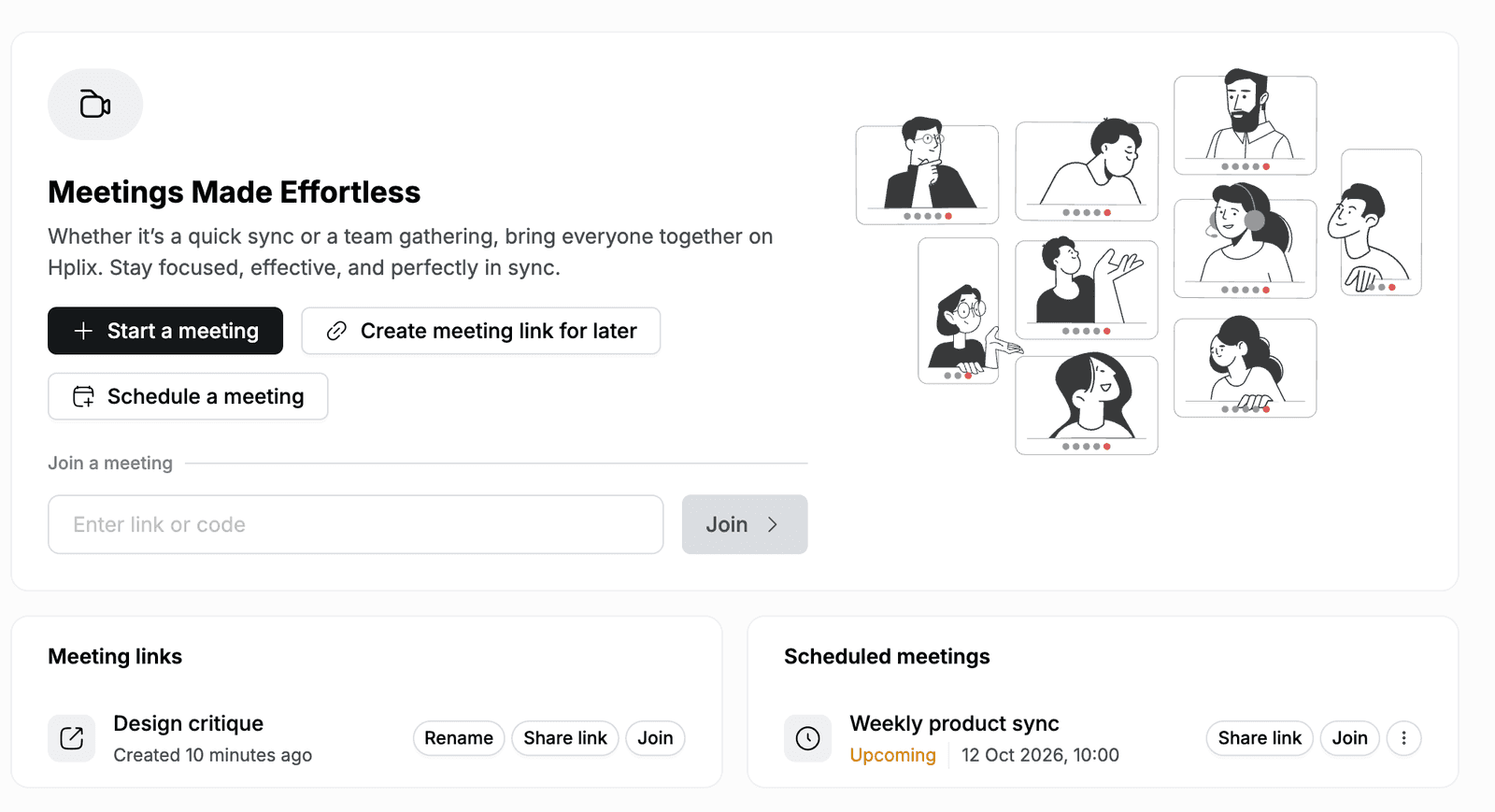
Schedule a meeting
- Go to Meet and click Schedule a meeting.
- Enter a Name, for example
Weekly product sync. - Under Add Email, search for the people to invite and select them.
- Pick the Date & Time the meeting starts and click OK.
- Optional: add a Description.
- Click Create.
Everyone you invited gets an email invitation. The meeting appears under Scheduled meetings with its status, such as Upcoming, and its start time.
- To send the link to someone, click Share link. The link is copied so you can paste it anywhere.
- To change or call off the meeting, click ⋮ and select Edit or Cancel.
- When it is time, click Join.
Meet and Calendar
Meetings scheduled in Meet are not added to Calendar. To put a call on everyone's calendar, create a Calendar event. Each event has its own meeting code and a Start Video Meeting button.
Create a meeting link for later
Use a meeting link for a call you hold often, such as a weekly review.
- Go to Meet and click Create meeting link for later.
- The New Meeting Link dialog shows Your Meeting Link. Click Join Now to open it, or Cancel to keep it for later.
The link is saved under Meeting links as Untitled meeting. To give it a name, click Rename, enter a Name, for example Design critique, and click Save. Use Share link and Join in the same way as for scheduled meetings.
Start or join a meeting
- To meet right away, go to Meet and click Start a meeting.
- To join a meeting someone shared with you, paste the link or code into Join a meeting and click Join.