
Sprints and board
Plan sprints in the Planix backlog, track progress on the board and complete sprints.
In a Scrum project, the team works in sprints: short, fixed periods with a set list of work items. You plan sprints on the Backlog view and follow progress on the Board view.
On the Backlog view, sprints are listed at the top and the Backlog section is at the bottom. Each section shows how many work items it holds. Turn on Including Done to also show finished items in the backlog.
Create a sprint
- Open the project and go to the Backlog view.
- Click Create Sprint. A new, empty sprint appears above the backlog.
- On the new sprint, click Add dates. The Edit sprint dialog opens.
- Enter a Sprint Name, for example
WR Sprint 1. - Select a Duration: 1 week, 2 weeks, 3 weeks, 4 weeks or Custom.
- Select the Start Date. For a fixed duration, the End Date is filled in for you.
- Optional: enter a Sprint Goal, for example
Finish discovery and approve the homepage design. - Click Update.
To change a sprint later, click ... on the sprint and click Edit sprint. The same menu lets you move the sprint up, reorder its work items or delete it.
Deleting a sprint
Deleting a sprint cannot be undone.
Add work items to a sprint
- Click the work item's key to open it.
- Under Details, click Sprint and select the sprint.
The item moves from Backlog into the sprint. To create an item directly in a sprint, click + Create under that sprint.
To change the status of several items at once, select their checkboxes and click Change status in the bar at the bottom of the page.
Start a sprint
- On the Backlog view, click Start Sprint on the sprint.
- Check the number of work items, the dates and the goal.
- Click Start.
The project switches to the Board view with the sprint's work items.
Track work on the board
The Board view shows the work items in the active sprint, with one column for each status. The number next to each column name is the number of items in it.
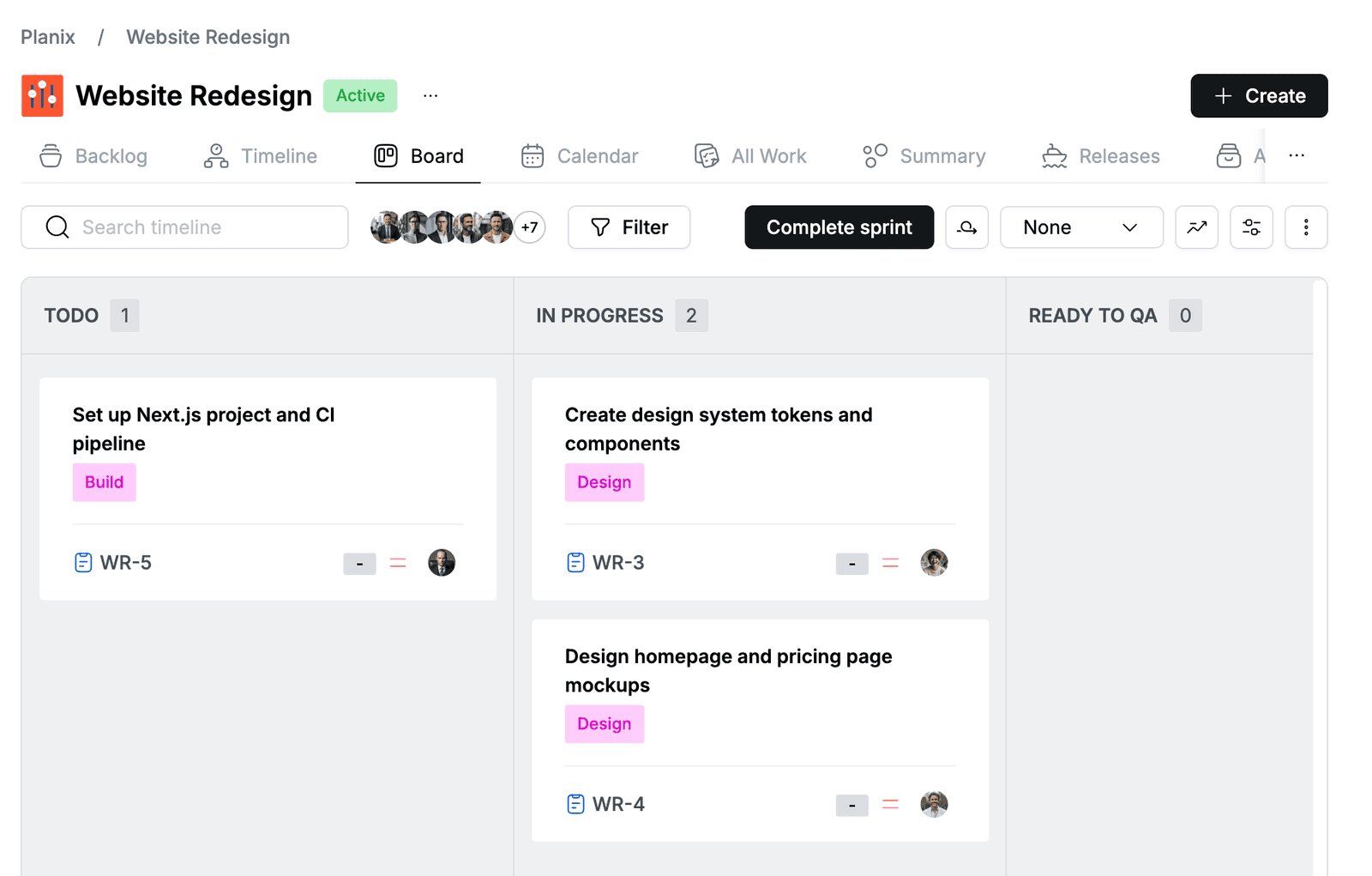
- To arrange cards in rows, select a grouping next to Complete sprint: None, Assignee, Epic or Subtask.
- To find items, use the search box or Filter.
Complete a sprint
- On the Board view, click Complete sprint.
- Review the summary. Items in the last column, DONE, count as completed. Items in any other column are open.
- In Move Open Work Items To, select Backlog or New sprint.
- Click Complete.